NOV Diagram for .NET - Smart Shapes

Shapes are the primary building blocks of diagrams and fall into two general types: 1D and 2D. 2D shapes represent diagram elements and are edited through a bounding box. 1D shapes are generally used to connect 2D shapes and are edited by adjusting their beginning and end points.

Shapes are considered smart because their behavior when resized or adjusted through control points can be defined using formulas or custom .NET code. This topic explores the full range of shape features available in NOV Diagram for .NET..
2D and 1D shapes

1D and 2D shapes

NOV Diagram for .NET supports two general types of shapes: 2D and 1D.

2D shapes represent diagram elements such as flowchart symbols, equipment, and organizational units. Users move, resize, and rotate them through a bounding box, while their geometry determines their visual appearance.

1D shapes typically represent lines and connectors between 2D shapes. Users manipulate them through their beginning and end points, which can be glued to other shapes to maintain connections as those shapes move. Routable connectors can automatically adjust their paths to avoid obstacles.

Both types support geometry, text, ports, and control points. Formulas and custom .NET code can define how they respond to resizing and user interaction.
geometry commands

Shape Geometry

In NOV Diagram for .NET, shape geometries are composed of geometry commands that define their visual form. There are two types:

  • Plotter commands - construct paths by combining a sequence of drawing primitives, each continuing from the plotter's current position. These include NLineTo, NCubicBezierTo, NArcTo, NCircularArcTo, NNurbsTo, and NPolylineTo. To start a new figure, use NMoveTo, which positions the plotter at a new location without drawing.
  • Draw box commands - draw complete figures within a specified bounding box using a single command, simplifying the creation of geometric shapes and clipart. These include NDrawRect, NDrawEllipse, NDrawPolyline, NDrawPolygon, and NDrawPath.
shapes text

Shape Text

Shapes in NOV Diagram for .NET can contain rich text with multiple paragraphs, tables, lists, and embedded images. The built-in editor allows users to create formatted labels, annotations, and detailed content directly within shapes.

Character formatting includes fonts, sizes, styles, superscript, subscript, highlighting, and advanced text fills. Paragraph formatting supports alignment, indentation, line spacing, and right-to-left text. Bulleted and numbered lists can include multiple levels and customizable numbering.

Tables support merged and split cells, nesting, adjustable row and column sizes, and individual cell formatting. Paragraphs and tables can be grouped with shared margins, padding, borders, and backgrounds. Built-in spellchecking helps users identify and correct spelling errors as they type.
control points

Control Points

Control points are interactive handles that allow end-users to visually customize shapes, including their geometry, text placement, port locations, dimensions, and other metrics.

Geometry command coordinates and other shape properties can be bound to control point locations using formula expressions. When a user drags a control point, the bound properties update automatically.

A single control point can drive multiple properties, enabling coordinated adjustments to geometry, text, ports, and other aspects of the shape through a simple visual interaction.
input output ports

Ports (Connection Points)

Ports (connection points) define specific locations on shapes where connections can be made. Examples include the midpoint of a rectangle's top or bottom edge and the terminals of a diode.

Each port has a FlowMode property, which can be set to Input, Output, or InputAndOutput (the default):
  • Input ports accept connections from the end points of 1D shapes and the output ports of 2D shapes. They are displayed in green.
  • Output ports accept connections from the beginning points of 1D shapes and the input ports of 2D shapes. They are displayed in red.
  • InputAndOutput ports support both input and output connections. They are displayed in blue.
The FlowMode property lets you enforce the intended direction of connections.

end points glue

End Points Glue

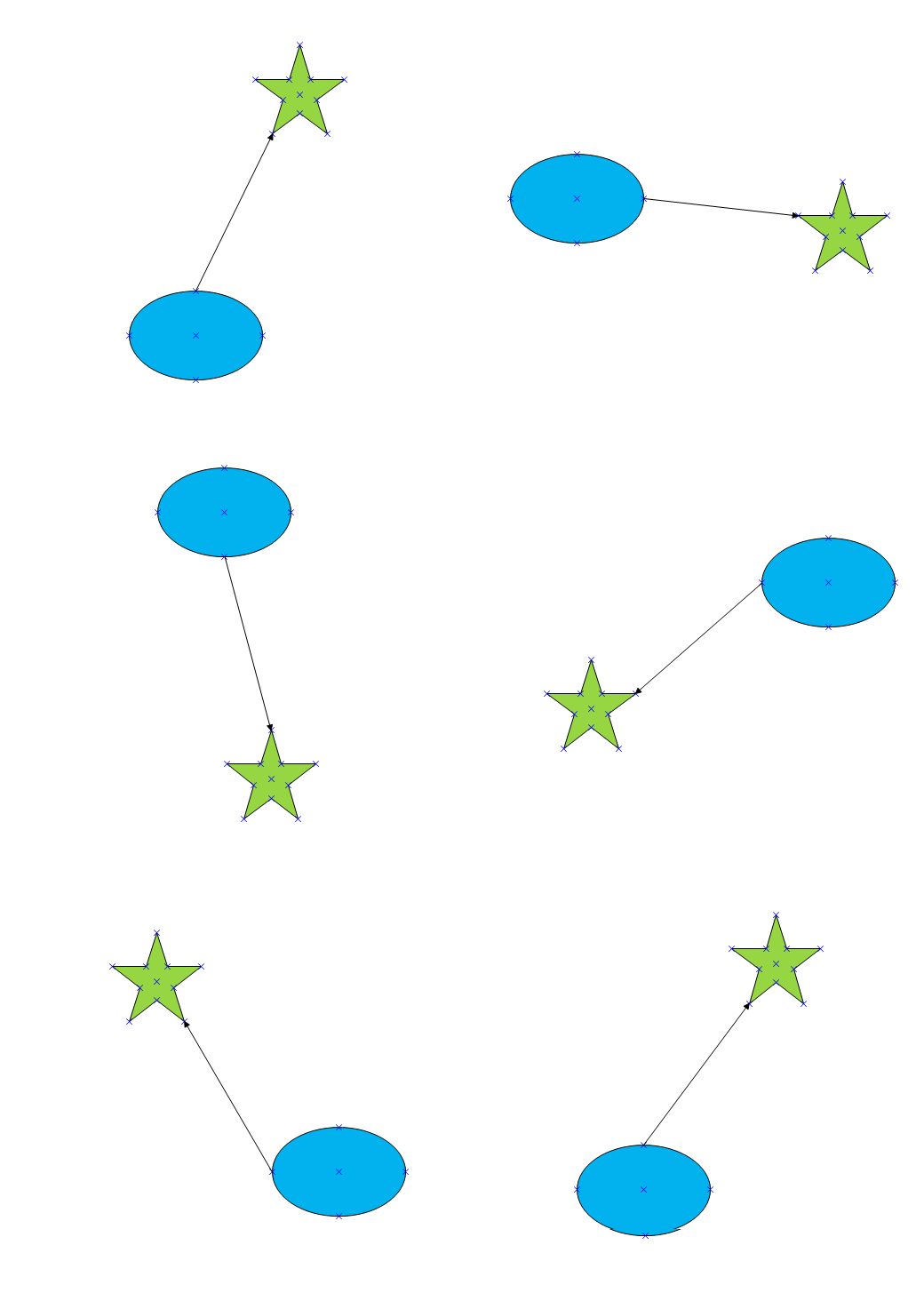
The beginning and end points of 1D shapes and connectors can be glued to ports, bounding boxes, or geometry features of other shapes.

When a target shape moves, the glued endpoints follow it, and the 1D shape automatically adjusts its geometry to maintain the connection.

NOV Diagram for .NET supports the following gluing methods:
  • Glue to Nearest Port
  • Glue to Shape Box Intersection
  • Glue to Geometry Intersection
  • Glue to Shape Box
  • Glue to Geometry Contour
  • Glue to Port
control points glue

Control Points Glue

Control points can be glued to specific locations on other shapes, allowing them to follow their targets as the drawing changes. Geometry, text, ports, and other properties bound to these control points update accordingly, maintaining relationships between diagram elements.

NOV Diagram for .NET supports gluing control points to ports, positions within a shape's bounding box, locations along a shape's line or geometry contour, and individual geometry vertices. This enables behaviors such as keeping a callout's tip attached to the shape it describes.

Glue connections can be created or removed both programmatically and visually by dragging control points. Gluing can also be enabled or disabled for individual control points.
ports glue

Ports Glue

Port gluing allows 2D shapes to connect directly through their ports. The attached shape is automatically positioned and rotated to align the connected ports.

Each port's GlueMode property determines how it participates in connections:
  • Inward - accepts connections from the endpoints of 1D shapes and outward ports of 2D shapes.
  • Outward - allows a 2D shape to attach to an inward port on another shape.
  • InwardAndOutward - supports both behaviors, allowing the port to accept connections and attach to other ports.
Each port has a direction vector that determines the orientation of port-to-port connections. For example, a chair can automatically rotate to face a table when its outward port is glued to an inward port on the table.
geometry corner rounding

Geometry Corner Rounding

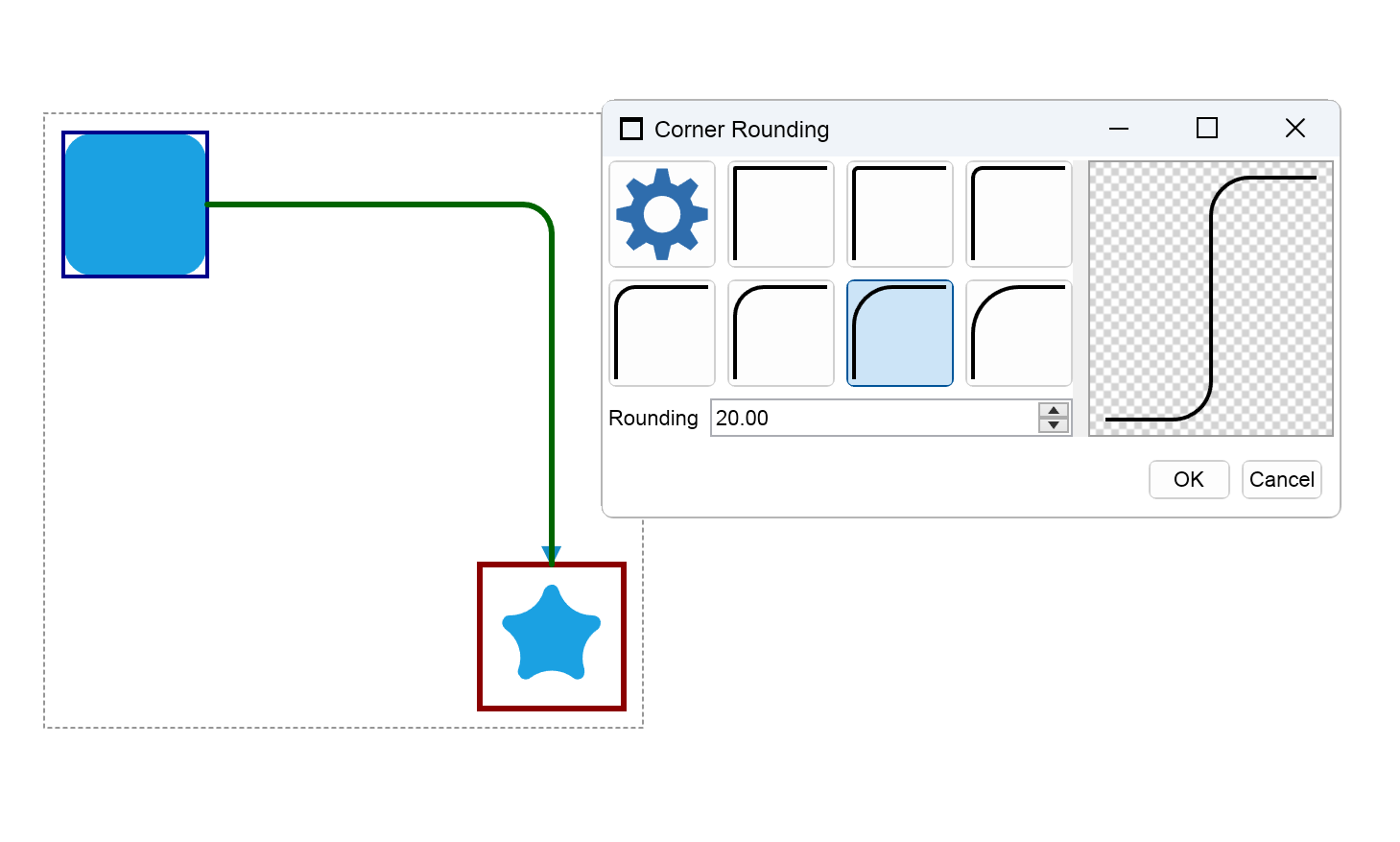
Nevron Diagram for .NET allows you to apply corner rounding to absolutely any shape, including all 2D and 1D shapes (connectors).

Select from a set of predefined values or enter your specific value to customize a shape's corner rounding.
arrowheads

Arrowheads

Arrowheads can be displayed at the beginning and end points of 1D shapes and connectors. They communicate flow direction and describe relationships between connected shapes, such as one-to-one, one-to-many, and many-to-many associations. By combining different arrowheads at each endpoint, you can express both the direction and meaning of a connection.

NOV Diagram for .NET provides a wide range of predefined arrowheads, including line arrows, triangles, circles, squares, diamonds, and combinations of these symbols. Filled and unfilled variants support different diagramming conventions, making them suitable for flowcharts, database models, technical drawings, and other diagrams.

The following predefined arrowheads are available in NOV Diagram for .NET:

  • None
  • Line Arrow
  • Triangle
  • Triangle With Inward Curve
  • Triangle With Outward Curve
  • Curved Line Arrow
  • Triangle With Inward Curves
  • Upward Angled Line
  • Circle
  • Square
  • Triangle No Fill
  • Triangle With Inward Curve No Fill
  • Triangle With Outward Curve No Fill
  • Triangle With Inward Curves No Fill
  • Circle No Fill
  • Square No Fill
  • Diamond
  • Diamond No Fill
  • Downward Angled Line
  • Vertical Line
  • Two Vertical Lines
  • Three Vertical Lines
  • Inverted Line Arrow
  • Inverted Line Arrow With Vertical Line
  • Inverted Line Arrow With Circle No Fill
  • Vertical Line With Circle No Fill
  • Circle No Fill Vertical Line
  • Circle No Fill Two Vertical Lines
  • Circle No Fill Three Vertical Lines
  • Circle No Fill Diamond No Fill
  • Circle Vertical Line
  • Circle Two Vertical Lines
  • Circle Three Vertical Lines
  • Circle Diamond No Fill
  • Double Triangle
  • Double Triangle No Fill
  • Double Line Arrow
  • Line Arrow With Vertical Line
  • Double Line Arrow With Vertical Line