Imports Nevron.Nov
Imports Nevron.Nov.Dom
Imports Nevron.Nov.Editors
Imports Nevron.Nov.Graphics
Imports Nevron.Nov.Layout
Imports Nevron.Nov.UI
Imports Nevron.Nov.Windows.Wpf

Class MainWindow

#Region "Constructors"

	Public Sub New()
		' This call is required by the designer.
		InitializeComponent()

		' Add any initialization after the InitializeComponent() call.

		' Set form title
		Title = "NOV WPF - NTopLevelWindowPropertiesExample"

		' Create the NOV example and its controls
		Dim exampleContent As NWidget = CreateExampleContent()
		Dim exampleControls As NWidget = CreateExampleControls()
		If Not exampleControls Is Nothing Then
			exampleControls.PreferredWidth = 300
		End If

		' Place the example and its controls in a pair box
		Dim pairBox As NPairBox = New NPairBox(exampleContent, exampleControls)
		pairBox.FillMode = ENStackFillMode.First
		pairBox.FitMode = ENStackFitMode.First
		pairBox.Margins = New NMargins(NDesign.HorizontalSpacing, NDesign.VerticalSpacing)

		' Host the example in the form
		Dim host As NNovWidgetHost(Of NWidget) = New NNovWidgetHost(Of NWidget)(pairBox)
		Content = host
	End Sub


#End Region

#Region "Example"

        Public Function CreateExampleContent() As NWidget
            ' Create and initialize a top level window
            m_Window = New NTopLevelWindow()
            m_Window.Title = "Top Level Window"
            m_Window.RemoveFromParentOnClose = True
            m_Window.AllowXResize = True
            m_Window.AllowYResize = True
            m_Window.PreferredSize = New NSize(300, 300)
            Me.m_Window.QueryManualStartPosition += AddressOf OnWindowQueryManualStartPosition
            Me.m_Window.Closed += AddressOf OnWindowClosed

            ' Create the top level window's content
            Dim stack As NStackPanel = New NStackPanel()
            stack.FitMode = ENStackFitMode.First
            stack.FillMode = ENStackFillMode.First

            Dim label As NLabel = New NLabel("This is a top level window.")
            label.HorizontalPlacement = ENHorizontalPlacement.Center
            label.VerticalPlacement = ENVerticalPlacement.Center
            stack.Add(label)

            Dim closeButton As NButton = New NButton("Close")
            closeButton.HorizontalPlacement = ENHorizontalPlacement.Center
            closeButton.Click += AddressOf OnCloseButtonClick
            stack.Add(closeButton)
            m_Window.Content = stack

            ' Create example content
            m_SettingsStack = New NStackPanel()
            m_SettingsStack.HorizontalPlacement = ENHorizontalPlacement.Left


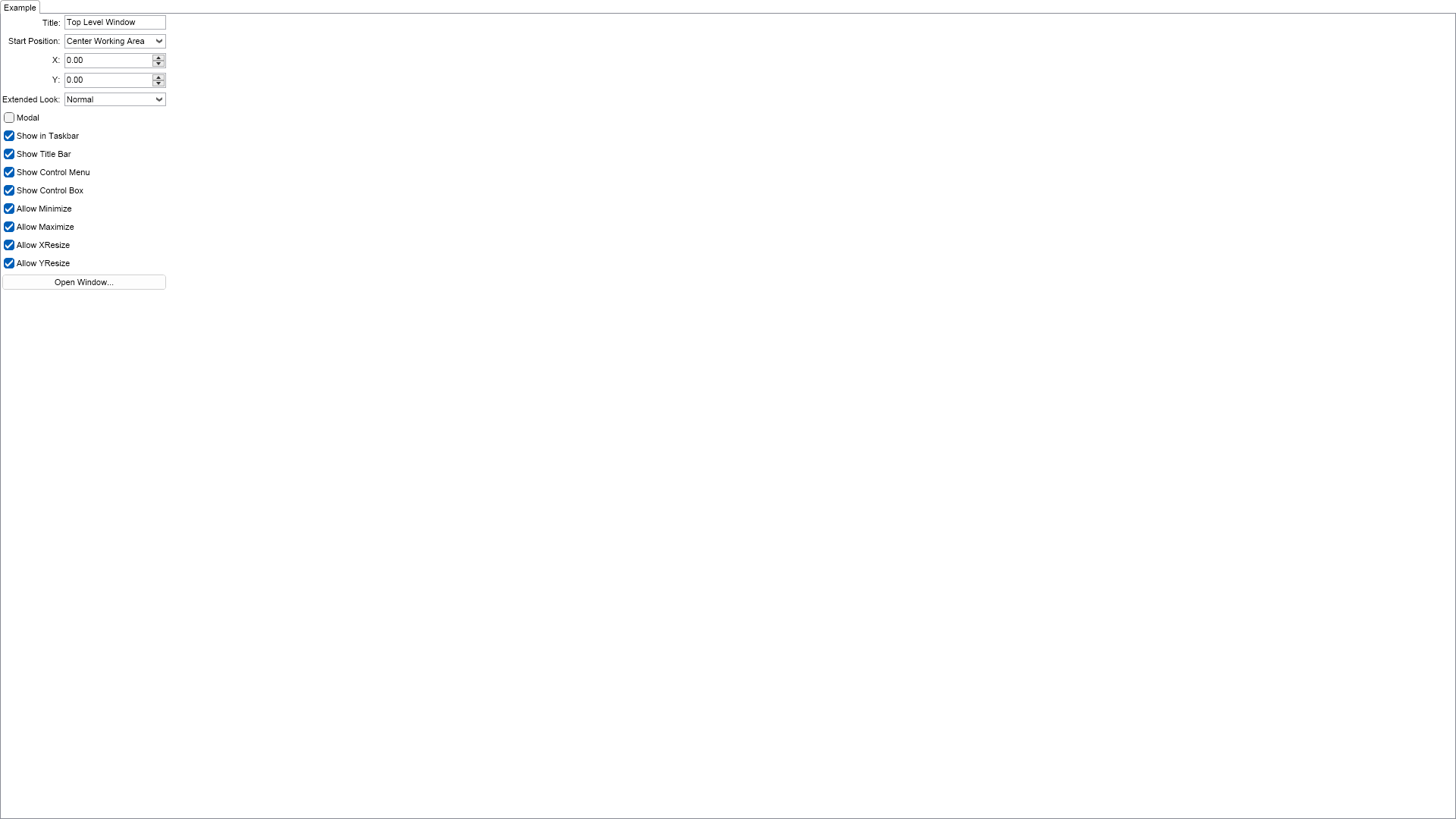
            Dim editors = NDesigner.GetDesigner(m_Window).CreateMemberEditors(m_Window, NTopLevelWindow.TitleProperty, NTopLevelWindow.StartPositionProperty, NBoxElement.XProperty, NBoxElement.YProperty, NStylePropertyEx.ExtendedLookPropertyEx, NTopLevelWindow.ModalProperty, NTopLevelWindow.ShowInTaskbarProperty, NTopLevelWindow.ShowTitleBarProperty, NTopLevelWindow.ShowControlMenuProperty, NTopLevelWindow.ShowControlBoxProperty, NTopLevelWindow.AllowMinimizeProperty, NTopLevelWindow.AllowMaximizeProperty, NTopLevelWindow.AllowXResizeProperty, NTopLevelWindow.AllowYResizeProperty)

            ' Change the text of the extended look property editor
            label = CType(editors(4).GetFirstDescendant(New NInstanceOfSchemaFilter(NLabel.NLabelSchema)), NLabel)
            label.Text = "Extended Look:"

            ' Add the created property editors to the stack
            Dim i = 0, count = editors.Count

            While i < count
                m_SettingsStack.Add(editors(i))
                i += 1
            End While

            ' Create a button that opens the window
            Dim openWindowButton As NButton = New NButton("Open Window...")
            openWindowButton.Content.HorizontalPlacement = ENHorizontalPlacement.Center
            openWindowButton.Click += AddressOf OnOpenWindowButtonClick
            m_SettingsStack.Add(openWindowButton)

            Return New NUniSizeBoxGroup(m_SettingsStack)
        End Function
        Public Function CreateExampleControls() As NWidget
            Return Nothing
        End Function
        Public Function GetExampleDescription() As String
            Return "

	This example demonstrates how to create, configure and open top level windows. Use the controls
	above to configure the properties of the top level window and then click ""Open Window...""
	button to show it.

"
        End Function

        '''
        ''' Gets the relevant documentation links for the example
        '''
        '''
        Public Function GetDocumentationUrls() As (String, String)()
            Return {("Top Level Windows", "https://www.nevron.com/docs/openvision/ui-top-level-windows.html"), ("Windows and the Desktop", "https://www.nevron.com/docs/openvision/ui-windows-and-the-desktop.html")}
        End Function
        Protected Friend Sub OnClosing()
            MyBase.OnClosing()

            m_Window.Close()
        End Sub

#End Region

#Region "Implementation"
#End Region

#Region "Event Handlers"

        Private Sub OnOpenWindowButtonClick(args As NEventArgs)
            DisplayWindow.Windows.Add(m_Window)
            m_Window.Open()
            m_SettingsStack.Enabled = False
        End Sub
        Private Sub OnCloseButtonClick(args As NEventArgs)
            m_Window.Close()
        End Sub
        Private Sub OnWindowQueryManualStartPosition(args As NEventArgs)
            ' Get the top level window which queries for position
            Dim window = CType(args.TargetNode, NTopLevelWindow)

            ' Set the top level window bounds (in DIPs)
            window.Bounds = New NRectangle(window.X, window.Y, window.DefaultWidth, window.DefaultHeight)
        End Sub
        Private Sub OnWindowClosed(args As NEventArgs)
            m_SettingsStack.Enabled = True
        End Sub

#End Region

#Region "Fields"

        Private m_Window As NTopLevelWindow
        Private m_SettingsStack As NStackPanel

#End Region

#Region "Static Methods"
#End Region

#Region "Constants"
#End Region

#Region "Nested Types"
#End Region

End Class

 Chart for .NET
 Diagram for .NET
 User Interface for .NET
 Vision for SSRS
 Chart for SSRS
 Gauge for SSRS
 Map for SSRS
 Barcode for SSRS
 Vision for SharePoint
 Chart for SharePoint
 Gauge for SharePoint
 Map for SharePoint
 Barcode for SharePoint
 Open Vision for .NET


 Vision for .NET