Nevron NOV Diagram for WinForms ships with hundreds of examples with full source code, as part of the Nevron Open Vision Suite.
All WinForms Diagram examples are also available as a stand-alone Visual Studio solution
in C# and VB.NET,
which you can download from the links below.
Dock Layout Example for WinForms Description
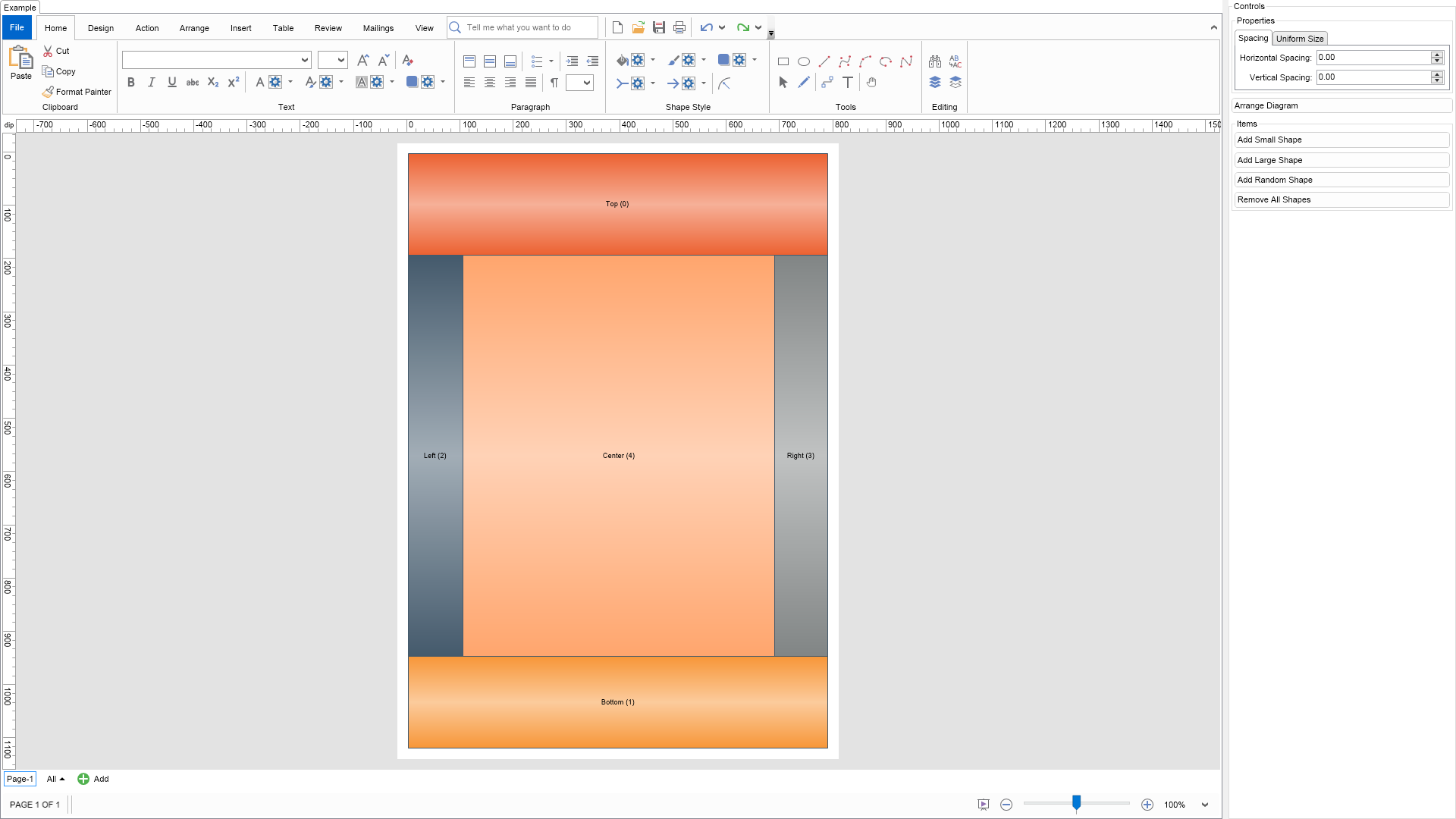
The dock layout arranges cells sequentially within the available layout area.
Each cell docks to a specified edge or fills the remaining center area.
Docking order affects the arrangement because each cell reduces the space available to subsequent cells.
Layout Properties
HorizontalSpacing and VerticalSpacing - specify the minimum horizontal and vertical gaps between cells.
Both default to 0.
UniformWidths - controls how cell widths are standardized before measurement and arrangement.
The default value, None, initially uses each cell's desired width.
UniformHeights - controls how cell heights are standardized before measurement and arrangement.
The default value, None, initially uses each cell's desired height.
Per-Item Properties
DockArea - an extended property applied individually to each arranged item.
It specifies where the item's cell docks within the remaining layout area:
Left - docks to the left edge and fills the available height.
Right - docks to the right edge and fills the available height.
Top - docks to the top edge and fills the available width.
Bottom - docks to the bottom edge and fills the available width.
Center - fills the remaining space in both dimensions.
To experiment with the layout, change its properties in the property grid and click the Layout button.
C# Dock Layout Example Code for Nevron Diagram for WinForms
Language: C#
using Nevron.Nov;
using Nevron.Nov.DataStructures;
using Nevron.Nov.Diagram;
using Nevron.Nov.Diagram.Layout;
using Nevron.Nov.Diagram.Shapes;
using Nevron.Nov.Dom;
using Nevron.Nov.Editors;
using Nevron.Nov.Graphics;
using Nevron.Nov.Layout;
using Nevron.Nov.UI;
using Nevron.Nov.Windows.Forms;
using System;
using System.Windows.Forms;
namespace NovWinFormsProject
{
public partial class Form1 : Form
{
#region Constructors
public Form1()
{
InitializeComponent();
// Set form title
Text = "NOV WinForms - NDockLayoutExample";
// Create the NOV example and its controls
NWidget exampleContent = CreateExampleContent();
NWidget exampleControls = CreateExampleControls();
if (exampleControls != null)
{
exampleControls.PreferredWidth = 300;
}
// Place the example and its controls in a pair box
NPairBox pairBox = new NPairBox(exampleContent, exampleControls);
pairBox.FillMode = ENStackFillMode.First;
pairBox.FitMode = ENStackFitMode.First;
pairBox.Margins = new NMargins(NDesign.HorizontalSpacing, NDesign.VerticalSpacing);
// Host the example in the form
NNovWidgetHost host = new NNovWidgetHost(pairBox);
host.Dock = DockStyle.Fill;
Controls.Add(host);
}
#endregion
#region Example
public NWidget CreateExampleContent()
{
// Create a simple drawing
NDrawingViewWithRibbon drawingViewWithRibbon = new NDrawingViewWithRibbon();
m_DrawingView = drawingViewWithRibbon.View;
m_DrawingView.Document.HistoryService.Pause();
try
{
InitDiagram(m_DrawingView.Document);
}
finally
{
m_DrawingView.Document.HistoryService.Resume();
}
return drawingViewWithRibbon;
}
public NWidget CreateExampleControls()
{
m_Layout.Changed += OnLayoutChanged;
NStackPanel stack = new NStackPanel();
// property editor
NEditor editor = NDesigner.GetDesigner(m_Layout).CreateStandaloneEditor(m_Layout);
stack.Add(new NGroupBox("Properties", editor));
NButton arrangeButton = new NButton("Arrange Diagram");
arrangeButton.Click += OnArrangeButtonClick;
stack.Add(arrangeButton);
// items stack
NStackPanel itemsStack = new NStackPanel();
// NOTE: For Cells layout we provide the user with the ability to add shapes with different sizes so that he/she can test the layouts
NButton addSmallItemButton = new NButton("Add Small Shape");
addSmallItemButton.Click += OnAddSmallItemButtonClick;
itemsStack.Add(addSmallItemButton);
NButton addLargeItemButton = new NButton("Add Large Shape");
addLargeItemButton.Click += OnAddLargeItemButtonClick;
itemsStack.Add(addLargeItemButton);
NButton addRandomItemButton = new NButton("Add Random Shape");
addRandomItemButton.Click += OnAddRandomItemButtonClick;
itemsStack.Add(addRandomItemButton);
NButton removeAllItemsButton = new NButton("Remove All Shapes");
removeAllItemsButton.Click += OnRemoveAllItemsButtonClick;
itemsStack.Add(removeAllItemsButton);
stack.Add(new NGroupBox("Items", itemsStack));
return stack;
}
public string GetExampleDescription()
{
return @"
The dock layout arranges cells sequentially within the available layout area.
Each cell docks to a specified edge or fills the remaining center area.
Docking order affects the arrangement because each cell reduces the space available to subsequent cells.
Layout Properties
HorizontalSpacing and VerticalSpacing - specify the minimum horizontal and vertical gaps between cells.
Both default to 0.
UniformWidths - controls how cell widths are standardized before measurement and arrangement.
The default value, None, initially uses each cell's desired width.
UniformHeights - controls how cell heights are standardized before measurement and arrangement.
The default value, None, initially uses each cell's desired height.
Per-Item Properties
DockArea - an extended property applied individually to each arranged item.
It specifies where the item's cell docks within the remaining layout area:
Left - docks to the left edge and fills the available height.
Right - docks to the right edge and fills the available height.
Top - docks to the top edge and fills the available width.
Bottom - docks to the bottom edge and fills the available width.
Center - fills the remaining space in both dimensions.
To experiment with the layout, change its properties in the property grid and click the Layout button.
";
}
///
/// Gets the relevant documentation links for the example
///
///
public (string Name, string Url)[] GetDocumentationUrls()
{
return new[]
{
("Dock Layout", "https://www.nevron.com/docs/openvision/dock-layout.html"),
("Layouts Overview", "https://www.nevron.com/docs/openvision/diagram-drawing-layouts-overview.html"),
("Graph Regions and Regions Layouts", "https://www.nevron.com/docs/openvision/diagram-graph-regions-and-region-layouts.html"),
("Layouts Overview", "https://www.nevron.com/docs/openvision/layouts-overview.html"),
};
}
private void InitDiagram(NDrawingDocument drawingDocument)
{
// Hide ports
drawingDocument.Content.ScreenVisibility.ShowPorts = false;
NPage activePage = drawingDocument.Content.ActivePage;
m_ShapeFactory = new NBasicShapeFactory();
int min = 100;
int max = 200;
NShape shape;
Random random = new Random();
for (int i = 0; i < 5; i++)
{
shape = m_ShapeFactory.CreateShape(ENBasicShape.Rectangle);
NColor[] shapeLightColors = new NColor[] {
new NColor(236, 97, 49),
new NColor(247, 150, 56),
new NColor(68, 90, 108),
new NColor(129, 133, 133),
new NColor(255, 165, 109)};
NColor[] shapeDarkColors = new NColor[] {
new NColor(246, 176, 152),
new NColor(251, 203, 156),
new NColor(162, 173, 182),
new NColor(192, 194, 194),
new NColor(255, 210, 182)};
shape.Geometry.Fill = new NStockGradientFill(ENGradientStyle.Horizontal, ENGradientVariant.Variant3, shapeLightColors[i], shapeDarkColors[i]);
shape.Geometry.Stroke = new NStroke(1, new NColor(68, 90, 108));
// Generate random width and height
float width = random.Next(min, max);
float height = random.Next(min, max);
switch (i)
{
case 0:
shape.LayoutData.DockArea = ENDockArea.Top;
shape.Text = "Top (" + i.ToString() + ")";
break;
case 1:
shape.LayoutData.DockArea = ENDockArea.Bottom;
shape.Text = "Bottom (" + i.ToString() + ")";
break;
case 2:
shape.LayoutData.DockArea = ENDockArea.Left;
shape.Text = "Left (" + i.ToString() + ")";
break;
case 3:
shape.LayoutData.DockArea = ENDockArea.Right;
shape.Text = "Right (" + i.ToString() + ")";
break;
case 4:
shape.LayoutData.DockArea = ENDockArea.Center;
shape.Text = "Center (" + i.ToString() + ")";
break;
}
shape.SetBounds(new NRectangle(0, 0, width, height));
activePage.Items.Add(shape);
}
// Arrange diagram
ArrangeDiagram(drawingDocument);
// Fit page
drawingDocument.Content.ActivePage.ZoomMode = ENZoomMode.Fit;
}
#endregion
#region Implementation
///
/// Arranges the shapes in the active page.
///
///
private void ArrangeDiagram(NDrawingDocument drawingDocument)
{
// get all top-level shapes that reside in the active page
NPage activePage = drawingDocument.Content.ActivePage;
NList shapes = activePage.GetShapes(false);
// create a layout context and use it to arrange the shapes using the current layout
NDrawingLayoutContext layoutContext = new NDrawingLayoutContext(drawingDocument, activePage);
m_Layout.Arrange(shapes.CastAll
Download a fully functional C# (.cs) Dock Layout Example for WinForms Solution
VB.NET Dock Layout Example Code for Nevron Diagram for WinForms
Language: VB.NET
Imports Nevron.Nov
Imports Nevron.Nov.Diagram
Imports Nevron.Nov.Diagram.Layout
Imports Nevron.Nov.Diagram.Shapes
Imports Nevron.Nov.Dom
Imports Nevron.Nov.Editors
Imports Nevron.Nov.Graphics
Imports Nevron.Nov.Layout
Imports Nevron.Nov.UI
Imports Nevron.Nov.Windows.Forms
Imports System

Public Class Form1

#Region "Constructors"

    Public Sub New()
        ' This call is required by the designer.
        InitializeComponent()

        ' Add any initialization after the InitializeComponent() call.

        ' Set form title
        Text = "NOV WinForms - NDockLayoutExample"

        ' Create the NOV example and its controls
        Dim exampleContent As NWidget = CreateExampleContent()
        Dim exampleControls As NWidget = CreateExampleControls()
        If Not exampleControls Is Nothing Then
            exampleControls.PreferredWidth = 300
        End If

        ' Place the example and its controls in a pair box
        Dim pairBox As NPairBox = New NPairBox(exampleContent, exampleControls)
        pairBox.FillMode = ENStackFillMode.First
        pairBox.FitMode = ENStackFitMode.First
        pairBox.Margins = New NMargins(NDesign.HorizontalSpacing, NDesign.VerticalSpacing)

        ' Host the example in the form
        Dim host As NNovWidgetHost(Of NWidget) = New NNovWidgetHost(Of NWidget)(pairBox)
        host.Dock = DockStyle.Fill
        Controls.Add(host)
    End Sub


#End Region

#Region "Example"

        Public Function CreateExampleContent() As NWidget
            ' Create a simple drawing
            Dim drawingViewWithRibbon As NDrawingViewWithRibbon = New NDrawingViewWithRibbon()
            m_DrawingView = drawingViewWithRibbon.View

            m_DrawingView.Document.HistoryService.Pause()
            Try
                InitDiagram(m_DrawingView.Document)
            Finally
                m_DrawingView.Document.HistoryService.Resume()
            End Try

            Return drawingViewWithRibbon
        End Function
        Public Function CreateExampleControls() As NWidget
            Me.m_Layout.Changed += AddressOf OnLayoutChanged

            Dim stack As NStackPanel = New NStackPanel()

            ' property editor
            Dim editor As NEditor = NDesigner.GetDesigner(m_Layout).CreateStandaloneEditor(m_Layout)
            stack.Add(New NGroupBox("Properties", editor))

            Dim arrangeButton As NButton = New NButton("Arrange Diagram")
            arrangeButton.Click += AddressOf OnArrangeButtonClick
            stack.Add(arrangeButton)

            ' items stack
            Dim itemsStack As NStackPanel = New NStackPanel()

            ' NOTE: For Cells layout we provide the user with the ability to add shapes with different sizes so that he/she can test the layouts
            Dim addSmallItemButton As NButton = New NButton("Add Small Shape")
            addSmallItemButton.Click += AddressOf OnAddSmallItemButtonClick
            itemsStack.Add(addSmallItemButton)

            Dim addLargeItemButton As NButton = New NButton("Add Large Shape")
            addLargeItemButton.Click += AddressOf OnAddLargeItemButtonClick
            itemsStack.Add(addLargeItemButton)

            Dim addRandomItemButton As NButton = New NButton("Add Random Shape")
            addRandomItemButton.Click += AddressOf OnAddRandomItemButtonClick
            itemsStack.Add(addRandomItemButton)

            Dim removeAllItemsButton As NButton = New NButton("Remove All Shapes")
            removeAllItemsButton.Click += AddressOf OnRemoveAllItemsButtonClick
            itemsStack.Add(removeAllItemsButton)

            stack.Add(New NGroupBox("Items", itemsStack))

            Return stack
        End Function
        Public Function GetExampleDescription() As String
            Return "

	The dock layout arranges cells sequentially within the available layout area.
	Each cell docks to a specified edge or fills the remaining center area.
	Docking order affects the arrangement because each cell reduces the space available to subsequent cells.


	Layout Properties


		HorizontalSpacing and VerticalSpacing - specify the minimum horizontal and vertical gaps between cells.
		Both default to 0.


		UniformWidths - controls how cell widths are standardized before measurement and arrangement.
		The default value, None, initially uses each cell's desired width.


		UniformHeights - controls how cell heights are standardized before measurement and arrangement.
		The default value, None, initially uses each cell's desired height.


	Per-Item Properties


		DockArea - an extended property applied individually to each arranged item.
		It specifies where the item's cell docks within the remaining layout area:

			Left - docks to the left edge and fills the available height.
			Right - docks to the right edge and fills the available height.
			Top - docks to the top edge and fills the available width.
			Bottom - docks to the bottom edge and fills the available width.
			Center - fills the remaining space in both dimensions.


	To experiment with the layout, change its properties in the property grid and click the Layout button.
"
        End Function

        '''
        ''' Gets the relevant documentation links for the example
        '''
        '''
        Public Function GetDocumentationUrls() As (String, String)()
            Return {("Dock Layout", "https://www.nevron.com/docs/openvision/dock-layout.html"), ("Layouts Overview", "https://www.nevron.com/docs/openvision/diagram-drawing-layouts-overview.html"), ("Graph Regions and Regions Layouts", "https://www.nevron.com/docs/openvision/diagram-graph-regions-and-region-layouts.html"), ("Layouts Overview", "https://www.nevron.com/docs/openvision/layouts-overview.html")}
        End Function

        Private Sub InitDiagram(drawingDocument As NDrawingDocument)
            ' Hide ports
            drawingDocument.Content.ScreenVisibility.ShowPorts = False

            Dim activePage = drawingDocument.Content.ActivePage
            m_ShapeFactory = New NBasicShapeFactory()

            Dim min = 100
            Dim max = 200

            Dim shape As NShape
            Dim random As Random = New Random()

            For i = 0 To 4
                shape = m_ShapeFactory.CreateShape(ENBasicShape.Rectangle)

                Dim shapeLightColors As NColor() = New NColor() {New NColor(236, 97, 49), New NColor(247, 150, 56), New NColor(68, 90, 108), New NColor(129, 133, 133), New NColor(255, 165, 109)}

                Dim shapeDarkColors As NColor() = New NColor() {New NColor(246, 176, 152), New NColor(251, 203, 156), New NColor(162, 173, 182), New NColor(192, 194, 194), New NColor(255, 210, 182)}

                shape.Geometry.Fill = New NStockGradientFill(ENGradientStyle.Horizontal, ENGradientVariant.Variant3, shapeLightColors(i), shapeDarkColors(i))
                shape.Geometry.Stroke = New NStroke(1, New NColor(68, 90, 108))


                ' Generate random width and height
                Dim width As Single = random.Next(min, max)
                Dim height As Single = random.Next(min, max)

                Select Case i
                    Case 0
                        shape.LayoutData.DockArea = ENDockArea.Top
                        shape.Text = "Top (" & i.ToString() & ")"

                    Case 1
                        shape.LayoutData.DockArea = ENDockArea.Bottom
                        shape.Text = "Bottom (" & i.ToString() & ")"

                    Case 2
                        shape.LayoutData.DockArea = ENDockArea.Left
                        shape.Text = "Left (" & i.ToString() & ")"

                    Case 3
                        shape.LayoutData.DockArea = ENDockArea.Right
                        shape.Text = "Right (" & i.ToString() & ")"

                    Case 4
                        shape.LayoutData.DockArea = ENDockArea.Center
                        shape.Text = "Center (" & i.ToString() & ")"
                End Select

                shape.SetBounds(New NRectangle(0, 0, width, height))
                activePage.Items.Add(shape)
            Next

            ' Arrange diagram
            ArrangeDiagram(drawingDocument)

            ' Fit page
            drawingDocument.Content.ActivePage.ZoomMode = ENZoomMode.Fit
        End Sub

#End Region

#Region "Implementation"

        '''
        ''' Arranges the shapes in the active page.
        '''
        '''
        Private Sub ArrangeDiagram(drawingDocument As NDrawingDocument)
            ' get all top-level shapes that reside in the active page
            Dim activePage = drawingDocument.Content.ActivePage
            Dim shapes = activePage.GetShapes(False)

            ' create a layout context and use it to arrange the shapes using the current layout
            Dim layoutContext As NDrawingLayoutContext = New NDrawingLayoutContext(drawingDocument, activePage)
            m_Layout.Arrange(shapes.CastAll(Of Object)(), layoutContext)

            ' size the page to the content size
            activePage.SizeToContent()
        End Sub
        Private Function CreateShape() As NShape
            Return m_ShapeFactory.CreateShape(ENBasicShape.Rectangle)
        End Function
        Private Sub OnAddSmallItemButtonClick(args As NEventArgs)
            Dim shape As NShape = CreateShape()
            shape.Width = 25
            shape.Height = 25

            m_DrawingView.ActivePage.Items.Add(shape)
            ArrangeDiagram(m_DrawingView.Document)
        End Sub
        Private Sub OnAddLargeItemButtonClick(args As NEventArgs)
            Dim shape As NShape = CreateShape()
            shape.Width = 60
            shape.Height = 60

            m_DrawingView.ActivePage.Items.Add(shape)
            ArrangeDiagram(m_DrawingView.Document)
        End Sub
        Private Sub OnAddRandomItemButtonClick(args As NEventArgs)
            Dim range = 30
            Dim rnd As Random = New Random()

            Dim shape As NShape = CreateShape()
            shape.Width = rnd.Next(range) + range
            shape.Height = rnd.Next(range) + range

            m_DrawingView.ActivePage.Items.Add(shape)
            ArrangeDiagram(m_DrawingView.Document)
        End Sub
        Private Sub OnRemoveAllItemsButtonClick(args As NEventArgs)
            m_DrawingView.Document.StartHistoryTransaction("Remove All Items")
            Try
                m_DrawingView.Document.Content.ActivePage.Items.Clear()
            Finally
                m_DrawingView.Document.CommitHistoryTransaction()
            End Try
        End Sub

#End Region

#Region "Event Handlers"

        Private Sub OnLayoutChanged(arg As NEventArgs)
            ArrangeDiagram(m_DrawingView.Document)
        End Sub
        Protected Overridable Sub OnArrangeButtonClick(arg As NEventArgs)
            ArrangeDiagram(m_DrawingView.Document)
        End Sub

#End Region

#Region "Fields"

        Private m_DrawingView As NDrawingView
        Private m_ShapeFactory As NBasicShapeFactory
        Private m_Layout As NDockLayout = New NDockLayout()

#End Region

#Region "Static Methods"
#End Region

#Region "Constants"
#End Region

#Region "Nested Types"
#End Region

End Class
Download a fully functional VB.NET (.vb) Dock Layout Example for WinForms Solution

 Chart for .NET
 Diagram for .NET
 User Interface for .NET
 Vision for SSRS
 Chart for SSRS
 Gauge for SSRS
 Map for SSRS
 Barcode for SSRS
 Vision for SharePoint
 Chart for SharePoint
 Gauge for SharePoint
 Map for SharePoint
 Barcode for SharePoint
 Open Vision for .NET


 Vision for .NET