Diagram Designer Example for WinForms

Nevron NOV Diagram for WinForms ships with hundreds of examples with full source code, as part of the Nevron Open Vision Suite. All WinForms Diagram examples are also available as a stand-alone Visual Studio solution in C# and VB.NET, which you can download from the links below.

Diagram Designer Example for WinForms Description

Demonstrates how to create a Diagram Designer application that has all the necessary UI components of an enterprise diagramming application, including:

  • Diagram View - represented by the NDrawingView widget.
  • Diagram Ribbon - a ribbon populated with diagram-related commands via an instance of the NDiagramRibbonBuilder class.
  • Library Browser - represented by the NLibraryBrowser class. Manages the libraries the user opens or creates. Diagrams are easily constructed by dragging and dropping shapes from libraries to the Drawing View.
  • Drawing Explorer - represented by the NDrawingExplorer class. Helps with the browsing and exploration of the shapes and layers from which drawing pages are constructed.
  • Pan and Zoom View - represented by the NPanAndZoomView class. Helps with the quick scrolling and zooming of drawing pages, and also helps users see a bird's-eye view of the entire page.
  • Side Bar - represented by the NSideBar class. Helps you quickly format the currently selected objects, resize them, and change their properties.
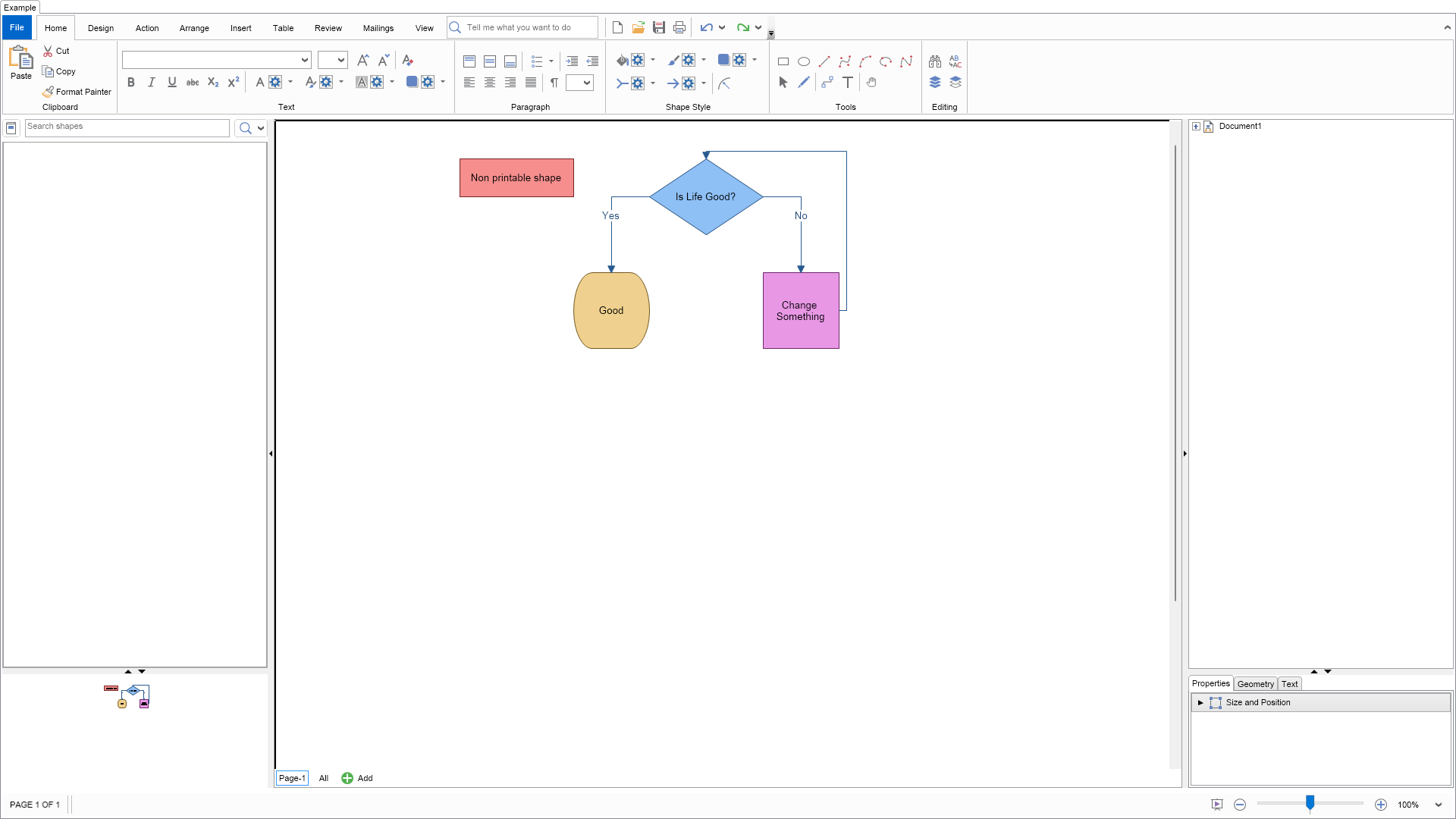
Diagram Designer Example

C# Diagram Designer Example Code for Nevron Diagram for WinForms
Language: C#

using Nevron.Nov;
using Nevron.Nov.DataStructures;
using Nevron.Nov.Diagram;
using Nevron.Nov.Diagram.UI;
using Nevron.Nov.Dom;
using Nevron.Nov.Examples.Diagram;
using Nevron.Nov.Graphics;
using Nevron.Nov.Layout;
using Nevron.Nov.UI;
using Nevron.Nov.Windows.Forms;
using System.Windows.Forms;

namespace NovWinFormsProject
{
	public partial class Form1 : Form
	{
		#region Constructors

		public Form1()
		{
			InitializeComponent();

			// Set form title
			Text = "NOV WinForms - NDiagramDesignerExample";

			// Create the NOV example and its controls
			NWidget exampleContent = CreateExampleContent();
			NWidget exampleControls = CreateExampleControls();
			if (exampleControls != null)
			{
				exampleControls.PreferredWidth = 300;
			}

			// Place the example and its controls in a pair box
			NPairBox pairBox = new NPairBox(exampleContent, exampleControls);
			pairBox.FillMode = ENStackFillMode.First;
			pairBox.FitMode = ENStackFitMode.First;
			pairBox.Margins = new NMargins(NDesign.HorizontalSpacing, NDesign.VerticalSpacing);

			// Host the example in the form
			NNovWidgetHost host = new NNovWidgetHost(pairBox);
			host.Dock = DockStyle.Fill;
			Controls.Add(host);
		}

		#endregion

        #region Example

        public NWidget CreateExampleContent()
        {
            // Create a pan and zoom view
            NPanAndZoomView panAndZoomView = new NPanAndZoomView();

            // Create a library browser that displays all predefined shape factories
            m_LibraryBrowser = new NLibraryBrowser();
            m_LibraryBrowser.LibraryViewType = ENLibraryViewType.Thumbnails;

            // Create pan and zoom
            m_PanAndZoom = new NPanAndZoomView();
            m_PanAndZoom.PreferredSize = new NSize(150, 150);

            // Create side bar
            m_SideBar = new NSideBar();

            // Create drawing explorer
            m_DrawingExplorer = new NDrawingExplorer();

            // Create a drawing view
            NDrawingView drawingView = new NDrawingView();
			drawingView.HorizontalPlacement = ENHorizontalPlacement.Fit;
			drawingView.VerticalPlacement = ENVerticalPlacement.Fit;

            // Bind components to drawing view
            m_LibraryBrowser.DrawingView = drawingView;
            m_LibraryBrowser.ResetLibrariesAsync();
            m_PanAndZoom.DrawingView = drawingView;
            m_SideBar.DrawingView = drawingView;
            m_DrawingExplorer.DrawingView = drawingView;

            // Create Library Browser - Pan View splitter
            NSplitter libraryPanSplitter = new NSplitter();
            libraryPanSplitter.Thumb.CollapseMode = ENSplitterCollapseMode.BothPanes;
            libraryPanSplitter.Orientation = ENHVOrientation.Vertical;
            libraryPanSplitter.SplitMode = ENSplitterSplitMode.OffsetFromFarSide;
            libraryPanSplitter.Pane1.Content = m_LibraryBrowser;
            libraryPanSplitter.Pane2.Content = m_PanAndZoom;

            // Create Drawing Explorer - Side Bar splitter
            NSplitter exlorerPropertiesSplitter = new NSplitter();
            exlorerPropertiesSplitter.Thumb.CollapseMode = ENSplitterCollapseMode.BothPanes;
            exlorerPropertiesSplitter.Orientation = ENHVOrientation.Vertical;
            exlorerPropertiesSplitter.SplitMode = ENSplitterSplitMode.OffsetFromFarSide;
            exlorerPropertiesSplitter.Pane1.Content = m_DrawingExplorer;
            exlorerPropertiesSplitter.Pane2.Content = m_SideBar;

            // Create the main splitter
            NMultiSplitter mainSplitter = new NMultiSplitter();
            mainSplitter.Orientation = ENHVOrientation.Horizontal;

            mainSplitter.Widgets.Add(libraryPanSplitter);

            NSplitterThumb thumb1 = new NSplitterThumb();
            thumb1.CollapseMode = ENSplitterCollapseMode.PreviousPane;
            thumb1.SplitMode = ENSplitterSplitMode.OffsetFromNearSide;
            thumb1.SplitOffset = 350;
            mainSplitter.Widgets.Add(thumb1);

            mainSplitter.Widgets.Add(drawingView);

            NSplitterThumb thumb2 = new NSplitterThumb();
            thumb2.CollapseMode = ENSplitterCollapseMode.NextPane;
            thumb2.SplitMode = ENSplitterSplitMode.OffsetFromFarSide;
            thumb2.SplitOffset = 350;
            mainSplitter.Widgets.Add(thumb2);

            exlorerPropertiesSplitter.PreferredWidth = 100;
            mainSplitter.Widgets.Add(exlorerPropertiesSplitter);

			// Create a simple flowchart on the active page
			DiagramHelpers.CreateSimpleFlowchart(drawingView.ActivePage);

			// Create the ribbon UI
			NDiagramRibbonBuilder builder = new NDiagramRibbonBuilder();
            return builder.CreateUI(mainSplitter, drawingView);
        }
        public NWidget CreateExampleControls()
        {
            return null;
        }
        public string GetExampleDescription()
        {
            return @"

Demonstrates how to create a Diagram Designer application that has all the necessary UI components of an enterprise diagramming application, including:

  • Diagram View - represented by the NDrawingView widget.
  • Diagram Ribbon - a ribbon populated with diagram-related commands via an instance of the NDiagramRibbonBuilder class.
  • Library Browser - represented by the NLibraryBrowser class. Manages the libraries the user opens or creates. Diagrams are easily constructed by dragging and dropping shapes from libraries to the Drawing View.
  • Drawing Explorer - represented by the NDrawingExplorer class. Helps with the browsing and exploration of the shapes and layers from which drawing pages are constructed.
  • Pan and Zoom View - represented by the NPanAndZoomView class. Helps with the quick scrolling and zooming of drawing pages, and also helps users see a bird's-eye view of the entire page.
  • Side Bar - represented by the NSideBar class. Helps you quickly format the currently selected objects, resize them, and change their properties.
"; } /// /// Gets the relevant documentation links for the example /// /// public (string Name, string Url)[] GetDocumentationUrls() { return new[] { ("Diagram Ribbon Overview", "https://www.nevron.com/docs/openvision/diagram-ribbon-overview.html"), ("Drawing View and Drawing Document", "https://www.nevron.com/docs/openvision/diagram-drawing-view-and-drawing-document.html"), ("Drawing Explorer", "https://www.nevron.com/docs/openvision/diagram-drawing-explorer.html"), ("Library Browser", "https://www.nevron.com/docs/openvision/diagram-library-browser.html"), ("Context Menu", "https://www.nevron.com/docs/openvision/diagram-context-menu.html"), }; } protected void AccumulateAdditionalSourceCodeFiles(NList types) { types.Add("DiagramHelpers.cs"); } #endregion #region Implementation #endregion #region Event Handlers #endregion #region Fields private NLibraryBrowser m_LibraryBrowser; private NPanAndZoomView m_PanAndZoom; private NSideBar m_SideBar; private NDrawingExplorer m_DrawingExplorer; #endregion #region Static Methods #endregion #region Constants #endregion #region Nested Types #endregion } }

Download a fully functional C# (.cs) Diagram Designer Example for WinForms Solution

VB.NET Diagram Designer Example Code for Nevron Diagram for WinForms
Language: VB.NET

Imports Nevron.Nov
Imports Nevron.Nov.DataStructures
Imports Nevron.Nov.Diagram
Imports Nevron.Nov.Diagram.UI
Imports Nevron.Nov.Dom
Imports Nevron.Nov.Examples.Diagram
Imports Nevron.Nov.Graphics
Imports Nevron.Nov.Layout
Imports Nevron.Nov.UI
Imports Nevron.Nov.Windows.Forms

Public Class Form1

#Region "Constructors"

    Public Sub New()
        ' This call is required by the designer.
        InitializeComponent()

        ' Add any initialization after the InitializeComponent() call.

        ' Set form title
        Text = "NOV WinForms - NDiagramDesignerExample"

        ' Create the NOV example and its controls
        Dim exampleContent As NWidget = CreateExampleContent()
        Dim exampleControls As NWidget = CreateExampleControls()
        If Not exampleControls Is Nothing Then
            exampleControls.PreferredWidth = 300
        End If

        ' Place the example and its controls in a pair box
        Dim pairBox As NPairBox = New NPairBox(exampleContent, exampleControls)
        pairBox.FillMode = ENStackFillMode.First
        pairBox.FitMode = ENStackFitMode.First
        pairBox.Margins = New NMargins(NDesign.HorizontalSpacing, NDesign.VerticalSpacing)

        ' Host the example in the form
        Dim host As NNovWidgetHost(Of NWidget) = New NNovWidgetHost(Of NWidget)(pairBox)
        host.Dock = DockStyle.Fill
        Controls.Add(host)
    End Sub


#End Region

#Region "Example"

        Public Function CreateExampleContent() As NWidget
            ' Create a pan and zoom view
            Dim panAndZoomView As NPanAndZoomView = New NPanAndZoomView()

            ' Create a library browser that displays all predefined shape factories
            m_LibraryBrowser = New NLibraryBrowser()
            m_LibraryBrowser.LibraryViewType = ENLibraryViewType.Thumbnails

            ' Create pan and zoom
            m_PanAndZoom = New NPanAndZoomView()
            m_PanAndZoom.PreferredSize = New NSize(150, 150)

            ' Create side bar
            m_SideBar = New NSideBar()

            ' Create drawing explorer
            m_DrawingExplorer = New NDrawingExplorer()

            ' Create a drawing view
            Dim drawingView As NDrawingView = New NDrawingView()
            drawingView.HorizontalPlacement = ENHorizontalPlacement.Fit
            drawingView.VerticalPlacement = ENVerticalPlacement.Fit

            ' Bind components to drawing view
            m_LibraryBrowser.DrawingView = drawingView
            m_LibraryBrowser.ResetLibrariesAsync()
            m_PanAndZoom.DrawingView = drawingView
            m_SideBar.DrawingView = drawingView
            m_DrawingExplorer.DrawingView = drawingView

            ' Create Library Browser - Pan View splitter
            Dim libraryPanSplitter As NSplitter = New NSplitter()
            libraryPanSplitter.Thumb.CollapseMode = ENSplitterCollapseMode.BothPanes
            libraryPanSplitter.Orientation = ENHVOrientation.Vertical
            libraryPanSplitter.SplitMode = ENSplitterSplitMode.OffsetFromFarSide
            libraryPanSplitter.Pane1.Content = m_LibraryBrowser
            libraryPanSplitter.Pane2.Content = m_PanAndZoom

            ' Create Drawing Explorer - Side Bar splitter
            Dim exlorerPropertiesSplitter As NSplitter = New NSplitter()
            exlorerPropertiesSplitter.Thumb.CollapseMode = ENSplitterCollapseMode.BothPanes
            exlorerPropertiesSplitter.Orientation = ENHVOrientation.Vertical
            exlorerPropertiesSplitter.SplitMode = ENSplitterSplitMode.OffsetFromFarSide
            exlorerPropertiesSplitter.Pane1.Content = m_DrawingExplorer
            exlorerPropertiesSplitter.Pane2.Content = m_SideBar

            ' Create the main splitter
            Dim mainSplitter As NMultiSplitter = New NMultiSplitter()
            mainSplitter.Orientation = ENHVOrientation.Horizontal

            mainSplitter.Widgets.Add(libraryPanSplitter)

            Dim thumb1 As NSplitterThumb = New NSplitterThumb()
            thumb1.CollapseMode = ENSplitterCollapseMode.PreviousPane
            thumb1.SplitMode = ENSplitterSplitMode.OffsetFromNearSide
            thumb1.SplitOffset = 350
            mainSplitter.Widgets.Add(thumb1)

            mainSplitter.Widgets.Add(drawingView)

            Dim thumb2 As NSplitterThumb = New NSplitterThumb()
            thumb2.CollapseMode = ENSplitterCollapseMode.NextPane
            thumb2.SplitMode = ENSplitterSplitMode.OffsetFromFarSide
            thumb2.SplitOffset = 350
            mainSplitter.Widgets.Add(thumb2)

            exlorerPropertiesSplitter.PreferredWidth = 100
            mainSplitter.Widgets.Add(exlorerPropertiesSplitter)

            ' Create a simple flowchart on the active page
            DiagramHelpers.CreateSimpleFlowchart(drawingView.ActivePage)

            ' Create the ribbon UI
            Dim builder As NDiagramRibbonBuilder = New NDiagramRibbonBuilder()
            Return builder.CreateUI(mainSplitter, drawingView)
        End Function
        Public Function CreateExampleControls() As NWidget
            Return Nothing
        End Function
        Public Function GetExampleDescription() As String
            Return "

Demonstrates how to create a Diagram Designer application that has all the necessary UI components of an enterprise diagramming application, including:

  • Diagram View - represented by the NDrawingView widget.
  • Diagram Ribbon - a ribbon populated with diagram-related commands via an instance of the NDiagramRibbonBuilder class.
  • Library Browser - represented by the NLibraryBrowser class. Manages the libraries the user opens or creates. Diagrams are easily constructed by dragging and dropping shapes from libraries to the Drawing View.
  • Drawing Explorer - represented by the NDrawingExplorer class. Helps with the browsing and exploration of the shapes and layers from which drawing pages are constructed.
  • Pan and Zoom View - represented by the NPanAndZoomView class. Helps with the quick scrolling and zooming of drawing pages, and also helps users see a bird's-eye view of the entire page.
  • Side Bar - represented by the NSideBar class. Helps you quickly format the currently selected objects, resize them, and change their properties.
" End Function ''' ''' Gets the relevant documentation links for the example ''' ''' Public Function GetDocumentationUrls() As (String, String)() Return {("Diagram Ribbon Overview", "https://www.nevron.com/docs/openvision/diagram-ribbon-overview.html"), ("Drawing View and Drawing Document", "https://www.nevron.com/docs/openvision/diagram-drawing-view-and-drawing-document.html"), ("Drawing Explorer", "https://www.nevron.com/docs/openvision/diagram-drawing-explorer.html"), ("Library Browser", "https://www.nevron.com/docs/openvision/diagram-library-browser.html"), ("Context Menu", "https://www.nevron.com/docs/openvision/diagram-context-menu.html")} End Function Protected Sub AccumulateAdditionalSourceCodeFiles(types As NList(Of String)) types.Add("DiagramHelpers.cs") End Sub #End Region #Region "Implementation" #End Region #Region "Event Handlers" #End Region #Region "Fields" Private m_LibraryBrowser As NLibraryBrowser Private m_PanAndZoom As NPanAndZoomView Private m_SideBar As NSideBar Private m_DrawingExplorer As NDrawingExplorer #End Region #Region "Static Methods" #End Region #Region "Constants" #End Region #Region "Nested Types" #End Region End Class

Download a fully functional VB.NET (.vb) Diagram Designer Example for WinForms Solution