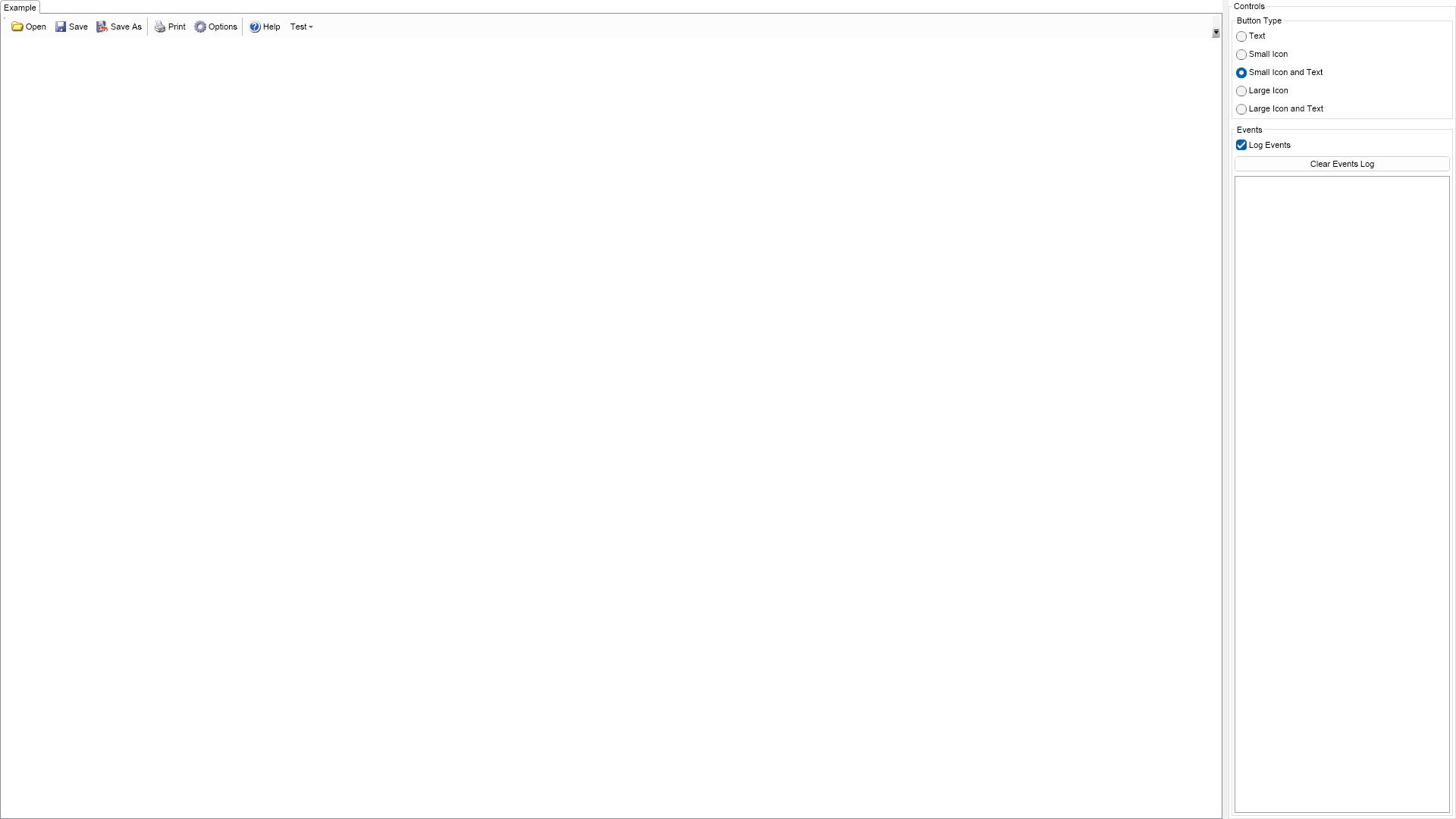
Tool Bar Example for WinForms

Nevron NOV UserInterface for WinForms ships with hundreds of examples with full source code, as part of the Nevron Open Vision Suite. All WinForms UserInterface examples are also available as a stand-alone Visual Studio solution in C# and VB.NET, which you can download from the links below.

Tool Bar Example for WinForms Description

This example demonstrates how to create a toolbar and populate it with buttons, which consist of image and text. Using the controls to the right you can change the size and the visibility of the images, which will result in recreation of the toolbar buttons.


Tool Bar Example

C# Tool Bar Example Code for Nevron UserInterface for WinForms
Language: C#

using Nevron.Nov;
using Nevron.Nov.Dom;
using Nevron.Nov.Graphics;
using Nevron.Nov.Layout;
using Nevron.Nov.UI;
using Nevron.Nov.Windows.Forms;
using System;
using System.Windows.Forms;

namespace NovWinFormsProject
{
	public partial class Form1 : Form
	{
		#region Constructors

		public Form1()
		{
			InitializeComponent();

			// Set form title
			Text = "NOV WinForms - NToolBarExample";

			// Create the NOV example and its controls
			NWidget exampleContent = CreateExampleContent();
			NWidget exampleControls = CreateExampleControls();
			if (exampleControls != null)
			{
				exampleControls.PreferredWidth = 300;
			}

			// Place the example and its controls in a pair box
			NPairBox pairBox = new NPairBox(exampleContent, exampleControls);
			pairBox.FillMode = ENStackFillMode.First;
			pairBox.FitMode = ENStackFitMode.First;
			pairBox.Margins = new NMargins(NDesign.HorizontalSpacing, NDesign.VerticalSpacing);

			// Host the example in the form
			NNovWidgetHost host = new NNovWidgetHost(pairBox);
			host.Dock = DockStyle.Fill;
			Controls.Add(host);
		}

		#endregion

		#region Example

		public NWidget CreateExampleContent()
		{
			m_ToolBar = new NToolBar();
			m_ToolBar.Text = "My Toolbar";
			m_ToolBar.VerticalPlacement = ENVerticalPlacement.Top;

			return m_ToolBar;
		}
		public NWidget CreateExampleControls()
		{
			NStackPanel stack = new NStackPanel();
			stack.FillMode = ENStackFillMode.Last;
			stack.FitMode = ENStackFitMode.Last;
			
			// Create the tool bar button type radio group
			NStackPanel buttonTypeStack = new NStackPanel();

			ENToolBarButtonType[] buttonTypes = NEnum.GetValues();
			for (int i = 0, count = buttonTypes.Length; i < count; i++)
			{
				// Get the current button type and its string representation
				ENToolBarButtonType buttonType = buttonTypes[i];
				string text = NStringHelpers.InsertSpacesBeforeUppersAndDigits(buttonType.ToString());

				// Create a radio button for the current button type
				NRadioButton radioButton = new NRadioButton(text);
				buttonTypeStack.Add(radioButton);
			}

			NRadioButtonGroup buttonTypeGroup = new NRadioButtonGroup(buttonTypeStack);
			buttonTypeGroup.SelectedIndexChanged += OnButtonTypeGroupSelectedIndexChanged;
			buttonTypeGroup.SelectedIndex = 2;
			stack.Add(new NGroupBox("Button Type", buttonTypeGroup));

			// Create the events log
			m_EventsLog = new NExampleEventsLog();
			stack.Add(m_EventsLog);

			return stack;
		}
		public string GetExampleDescription()
		{
			return @"

This example demonstrates how to create a toolbar and populate it with buttons, which consist of image and text. Using the controls to the right you can change the size and the visibility of the images, which will result in recreation of the toolbar buttons.

"; } /// /// Gets the relevant documentation links for the example /// /// public (string Name, string Url)[] GetDocumentationUrls() { return new[] { ("Toolbars", "https://www.nevron.com/docs/openvision/ui-toolbars.html"), ("Command Bars Overview", "https://www.nevron.com/docs/openvision/ui-command-bars-overview.html"), }; } #endregion #region Implementation private NImage GetSmallImage(int index) { NEmbeddedResourceRef resourceRef = new NEmbeddedResourceRef(SmallImages[index]); return new NImage(resourceRef); } private NImage GetLargeImage(int index) { NEmbeddedResourceRef resourceRef = new NEmbeddedResourceRef(LargeImages[index]); return new NImage(resourceRef); } private NPairBox CreatePairBox(NImage image, string text) { NPairBox pairBox = new NPairBox(image, text); pairBox.Box2.VerticalPlacement = ENVerticalPlacement.Center; pairBox.Spacing = 3; return pairBox; } private NButton CreateButton(ENToolBarButtonType buttonType, string text, int imageIndex) { NButton button = null; NImage image = null; switch (buttonType) { case ENToolBarButtonType.Text: button = new NButton(text); break; case ENToolBarButtonType.SmallIcon: image = GetSmallImage(imageIndex); button = new NButton(image); break; case ENToolBarButtonType.SmallIconAndText: image = GetSmallImage(imageIndex); button = new NButton(CreatePairBox(image, text)); break; case ENToolBarButtonType.LargeIcon: image = GetLargeImage(imageIndex); button = new NButton(image); break; case ENToolBarButtonType.LargeIconAndText: image = GetLargeImage(imageIndex); button = new NButton(CreatePairBox(image, text)); break; default: throw new Exception("New ENToolBarButtonType?"); } NCommandBar.SetText(button, text); NCommandBar.SetImage(button, image); button.Click += OnToolBarButtonClick; return button; } private void RecreateToolBarButtons(ENToolBarButtonType buttonType) { m_ToolBar.Items.Clear(); for (int i = 0, buttonCount = ButtonTexts.Length; i < buttonCount; i++) { string buttonText = ButtonTexts[i]; if (buttonText == null || buttonText.Length == 0) { m_ToolBar.Items.Add(new NCommandBarSeparator()); } else { m_ToolBar.Items.Add(CreateButton(buttonType, buttonText, i)); } } m_ToolBar.Items.Add(new NMenuDropDown("Test")); } #endregion #region Event Handlers /// /// Called when the user has checked a new button type radio button. /// /// private void OnButtonTypeGroupSelectedIndexChanged(NValueChangeEventArgs arg) { RecreateToolBarButtons((ENToolBarButtonType)(int)arg.NewValue); } /// /// Occurs when the user clicks on a tool bar button. /// /// private void OnToolBarButtonClick(NEventArgs args) { string buttonText = NCommandBar.GetText((NButton)args.TargetNode); m_EventsLog.LogEvent("<" + buttonText + "> button clicked"); } #endregion #region Fields private NToolBar m_ToolBar; private NExampleEventsLog m_EventsLog; #endregion #region Static Methods #endregion #region Constants private static readonly string[] ButtonTexts = new string[] { "Open", "Save", "Save As", null, "Print", "Options", null, "Help" }; private static readonly NEmbeddedResource[] SmallImages = new NEmbeddedResource[] { Nevron.Nov.Examples.NResources.RIMG_ToolBar_16x16_Open_png, Nevron.Nov.Examples.NResources.RIMG_ToolBar_16x16_Save_png, Nevron.Nov.Examples.NResources.RIMG_ToolBar_16x16_SaveAs_png, null, Nevron.Nov.Examples.NResources.RIMG_ToolBar_16x16_Print_png, Nevron.Nov.Examples.NResources.RIMG_ToolBar_16x16_Options_png, null, Nevron.Nov.Examples.NResources.RIMG_ToolBar_16x16_Help_png }; private static readonly NEmbeddedResource[] LargeImages = new NEmbeddedResource[] { Nevron.Nov.Examples.NResources.RIMG_ToolBar_32x32_Open_png, Nevron.Nov.Examples.NResources.RIMG_ToolBar_32x32_Save_png, Nevron.Nov.Examples.NResources.RIMG_ToolBar_32x32_SaveAs_png, null, Nevron.Nov.Examples.NResources.RIMG_ToolBar_32x32_Print_png, Nevron.Nov.Examples.NResources.RIMG_ToolBar_32x32_Options_png, null, Nevron.Nov.Examples.NResources.RIMG_ToolBar_32x32_Help_png }; #endregion #region Nested Types public enum ENToolBarButtonType { Text, SmallIcon, SmallIconAndText, LargeIcon, LargeIconAndText } #endregion } }

Download a fully functional C# (.cs) Tool Bar Example for WinForms Solution

VB.NET Tool Bar Example Code for Nevron UserInterface for WinForms
Language: VB.NET

Imports Nevron.Nov
Imports Nevron.Nov.Dom
Imports Nevron.Nov.Graphics
Imports Nevron.Nov.Layout
Imports Nevron.Nov.UI
Imports Nevron.Nov.Windows.Forms
Imports System

Public Class Form1

#Region "Constructors"

    Public Sub New()
        ' This call is required by the designer.
        InitializeComponent()

        ' Add any initialization after the InitializeComponent() call.

        ' Set form title
        Text = "NOV WinForms - NToolBarExample"

        ' Create the NOV example and its controls
        Dim exampleContent As NWidget = CreateExampleContent()
        Dim exampleControls As NWidget = CreateExampleControls()
        If Not exampleControls Is Nothing Then
            exampleControls.PreferredWidth = 300
        End If

        ' Place the example and its controls in a pair box
        Dim pairBox As NPairBox = New NPairBox(exampleContent, exampleControls)
        pairBox.FillMode = ENStackFillMode.First
        pairBox.FitMode = ENStackFitMode.First
        pairBox.Margins = New NMargins(NDesign.HorizontalSpacing, NDesign.VerticalSpacing)

        ' Host the example in the form
        Dim host As NNovWidgetHost(Of NWidget) = New NNovWidgetHost(Of NWidget)(pairBox)
        host.Dock = DockStyle.Fill
        Controls.Add(host)
    End Sub


#End Region

#Region "Example"

        Public Function CreateExampleContent() As NWidget
            m_ToolBar = New NToolBar()
            m_ToolBar.Text = "My Toolbar"
            m_ToolBar.VerticalPlacement = ENVerticalPlacement.Top

            Return m_ToolBar
        End Function
        Public Function CreateExampleControls() As NWidget
            Dim stack As NStackPanel = New NStackPanel()
            stack.FillMode = ENStackFillMode.Last
            stack.FitMode = ENStackFitMode.Last

            ' Create the tool bar button type radio group
            Dim buttonTypeStack As NStackPanel = New NStackPanel()

            Dim buttonTypes As ENToolBarButtonType() = NEnum.GetValues(Of ENToolBarButtonType)()
            Dim i = 0, count = buttonTypes.Length

            While i < count
                ' Get the current button type and its string representation
                Dim buttonType = buttonTypes(i)
                Dim text As String = NStringHelpers.InsertSpacesBeforeUppersAndDigits(buttonType.ToString())

                ' Create a radio button for the current button type
                Dim radioButton As NRadioButton = New NRadioButton(text)
                buttonTypeStack.Add(radioButton)
                i += 1
            End While

            Dim buttonTypeGroup As NRadioButtonGroup = New NRadioButtonGroup(buttonTypeStack)
            buttonTypeGroup.SelectedIndexChanged += AddressOf OnButtonTypeGroupSelectedIndexChanged
            buttonTypeGroup.SelectedIndex = 2
            stack.Add(New NGroupBox("Button Type", buttonTypeGroup))

            ' Create the events log
            m_EventsLog = New NExampleEventsLog()
            stack.Add(m_EventsLog)

            Return stack
        End Function
        Public Function GetExampleDescription() As String
            Return "

This example demonstrates how to create a toolbar and populate it with buttons, which consist of image and text. Using the controls to the right you can change the size and the visibility of the images, which will result in recreation of the toolbar buttons.

" End Function ''' ''' Gets the relevant documentation links for the example ''' ''' Public Function GetDocumentationUrls() As (String, String)() Return {("Toolbars", "https://www.nevron.com/docs/openvision/ui-toolbars.html"), ("Command Bars Overview", "https://www.nevron.com/docs/openvision/ui-command-bars-overview.html")} End Function #End Region #Region "Implementation" Private Function GetSmallImage(index As Integer) As NImage Dim resourceRef As NEmbeddedResourceRef = New NEmbeddedResourceRef(SmallImages(index)) Return New NImage(resourceRef) End Function Private Function GetLargeImage(index As Integer) As NImage Dim resourceRef As NEmbeddedResourceRef = New NEmbeddedResourceRef(LargeImages(index)) Return New NImage(resourceRef) End Function Private Function CreatePairBox(image As NImage, text As String) As NPairBox Dim pairBox As NPairBox = New NPairBox(image, text) pairBox.Box2.VerticalPlacement = ENVerticalPlacement.Center pairBox.Spacing = 3 Return pairBox End Function Private Function CreateButton(buttonType As ENToolBarButtonType, text As String, imageIndex As Integer) As NButton Dim button As NButton = Nothing Dim image As NImage = Nothing Select Case buttonType Case ENToolBarButtonType.Text button = New NButton(text) Case ENToolBarButtonType.SmallIcon image = GetSmallImage(imageIndex) button = New NButton(image) Case ENToolBarButtonType.SmallIconAndText image = GetSmallImage(imageIndex) button = New NButton(CreatePairBox(image, text)) Case ENToolBarButtonType.LargeIcon image = GetLargeImage(imageIndex) button = New NButton(image) Case ENToolBarButtonType.LargeIconAndText image = GetLargeImage(imageIndex) button = New NButton(CreatePairBox(image, text)) Case Else Throw New Exception("New ENToolBarButtonType?") End Select NCommandBar.SetText(button, text) NCommandBar.SetImage(button, image) button.Click += AddressOf OnToolBarButtonClick Return button End Function Private Sub RecreateToolBarButtons(buttonType As ENToolBarButtonType) m_ToolBar.Items.Clear() Dim i = 0, buttonCount = ButtonTexts.Length While i < buttonCount Dim buttonText = ButtonTexts(i) If Equals(buttonText, Nothing) OrElse buttonText.Length = 0 Then m_ToolBar.Items.Add(New NCommandBarSeparator()) Else m_ToolBar.Items.Add(CreateButton(buttonType, buttonText, i)) End If i += 1 End While m_ToolBar.Items.Add(New NMenuDropDown("Test")) End Sub #End Region #Region "Event Handlers" ''' ''' Called when the user has checked a new button type radio button. ''' ''' Private Sub OnButtonTypeGroupSelectedIndexChanged(arg As NValueChangeEventArgs) RecreateToolBarButtons(CInt(arg.NewValue)) End Sub ''' ''' Occurs when the user clicks on a tool bar button. ''' ''' Private Sub OnToolBarButtonClick(args As NEventArgs) Dim buttonText = NCommandBar.GetText(CType(args.TargetNode, NButton)) m_EventsLog.LogEvent("<" & buttonText & "> button clicked") End Sub #End Region #Region "Fields" Private m_ToolBar As NToolBar Private m_EventsLog As NExampleEventsLog #End Region #Region "Static Methods" #End Region #Region "Constants" Private Shared ReadOnly ButtonTexts As String() = New String() {"Open", "Save", "Save As", Nothing, "Print", "Options", Nothing, "Help"} Private Shared ReadOnly SmallImages As NEmbeddedResource() = New NEmbeddedResource() {NResources.RIMG_ToolBar_16x16_Open_png, Nevron.Nov.Examples.NResources.RIMG_ToolBar_16x16_Save_png, Nevron.Nov.Examples.NResources.RIMG_ToolBar_16x16_SaveAs_png, Nothing, Nevron.Nov.Examples.NResources.RIMG_ToolBar_16x16_Print_png, Nevron.Nov.Examples.NResources.RIMG_ToolBar_16x16_Options_png, Nothing, Nevron.Nov.Examples.NResources.RIMG_ToolBar_16x16_Help_png} Private Shared ReadOnly LargeImages As NEmbeddedResource() = New NEmbeddedResource() {NResources.RIMG_ToolBar_32x32_Open_png, Nevron.Nov.Examples.NResources.RIMG_ToolBar_32x32_Save_png, Nevron.Nov.Examples.NResources.RIMG_ToolBar_32x32_SaveAs_png, Nothing, Nevron.Nov.Examples.NResources.RIMG_ToolBar_32x32_Print_png, Nevron.Nov.Examples.NResources.RIMG_ToolBar_32x32_Options_png, Nothing, Nevron.Nov.Examples.NResources.RIMG_ToolBar_32x32_Help_png} #End Region #Region "Nested Types" Public Enum ENToolBarButtonType Text SmallIcon SmallIconAndText LargeIcon LargeIconAndText End Enum #End Region End Class

Download a fully functional VB.NET (.vb) Tool Bar Example for WinForms Solution

Related Documentation Links