Imports Nevron.Nov
Imports Nevron.Nov.Dom
Imports Nevron.Nov.Editors
Imports Nevron.Nov.Graphics
Imports Nevron.Nov.Layout
Imports Nevron.Nov.Presentation
Imports Nevron.Nov.UI
Imports Nevron.Nov.Windows.Forms
Imports System

Public Class Form1

#Region "Constructors"

    Public Sub New()
        ' This call is required by the designer.
        InitializeComponent()

        ' Add any initialization after the InitializeComponent() call.

        ' Set form title
        Text = "NOV WinForms - NTreeViewMixedContentExample"

        ' Create the NOV example and its controls
        Dim exampleContent As NWidget = CreateExampleContent()
        Dim exampleControls As NWidget = CreateExampleControls()
        If Not exampleControls Is Nothing Then
            exampleControls.PreferredWidth = 300
        End If

        ' Place the example and its controls in a pair box
        Dim pairBox As NPairBox = New NPairBox(exampleContent, exampleControls)
        pairBox.FillMode = ENStackFillMode.First
        pairBox.FitMode = ENStackFitMode.First
        pairBox.Margins = New NMargins(NDesign.HorizontalSpacing, NDesign.VerticalSpacing)

        ' Host the example in the form
        Dim host As NNovWidgetHost(Of NWidget) = New NNovWidgetHost(Of NWidget)(pairBox)
        host.Dock = DockStyle.Fill
        Controls.Add(host)
    End Sub


#End Region

#Region "Example"

        Public Function CreateExampleContent() As NWidget
            m_Random = New Random()

            ' Create the tree view
            m_TreeView = New NTreeView()
            m_TreeView.HorizontalPlacement = ENHorizontalPlacement.Left
            ' Check whether the application is in touch mode and set the width of the tree view.
            Dim touchMode = NApplication.Desktop.TouchMode
            m_TreeView.PreferredWidth = If(touchMode, 300, 200)

            ' Add some items
            For i = 0 To 31
                Dim checkBox = i >= 8 AndAlso i < 16 OrElse i >= 24
                Dim image = i >= 16

                Dim l1Item = CreateTreeViewItem(String.Format("Item {0}", i), checkBox, image)
                m_TreeView.Items.Add(l1Item)

                For j = 0 To 7
                    Dim l2Item = CreateTreeViewItem(String.Format("Item {0}.{1}", i, j), checkBox, image)
                    l1Item.Items.Add(l2Item)

                    For k = 0 To 1
                        Dim l3Item = CreateTreeViewItem(String.Format("Item {0}.{1}.{2}", i, j, k), checkBox, image)
                        l2Item.Items.Add(l3Item)
                    Next
                Next
            Next

            ' Hook to tree view events
            Me.m_TreeView.SelectedPathChanged += AddressOf OnTreeViewSelectedPathChanged
            Return m_TreeView
        End Function
        Public Function CreateExampleControls() As NWidget
            Dim stack As NStackPanel = New NStackPanel()
            stack.FillMode = ENStackFillMode.Last
            stack.FitMode = ENStackFitMode.Last

            ' Create the properties group box
            Dim propertiesStack As NStackPanel = New NStackPanel()
            Dim editors = NDesigner.GetDesigner(m_TreeView).CreateMemberEditors(m_TreeView, NInputElement.EnabledProperty, NTreeView.ShowItemHoverProperty, NWidget.HorizontalPlacementProperty, NWidget.VerticalPlacementProperty, NScrollContentBase.NoScrollHAlignProperty, NScrollContentBase.NoScrollVAlignProperty, NScrollContentBase.HScrollModeProperty, NScrollContentBase.VScrollModeProperty, NTreeView.IntegralVScrollProperty)

            Dim i = 0, count = editors.Count

            While i < count
                propertiesStack.Add(editors(i))
                i += 1
            End While

            Dim propertiesGroupBox As NGroupBox = New NGroupBox("Properties", New NUniSizeBoxGroup(propertiesStack))
            stack.Add(propertiesGroupBox)

            ' Create the events log
            m_EventsLog = New NExampleEventsLog()
            stack.Add(m_EventsLog)

            Return stack
        End Function
        Public Function GetExampleDescription() As String
            Return "

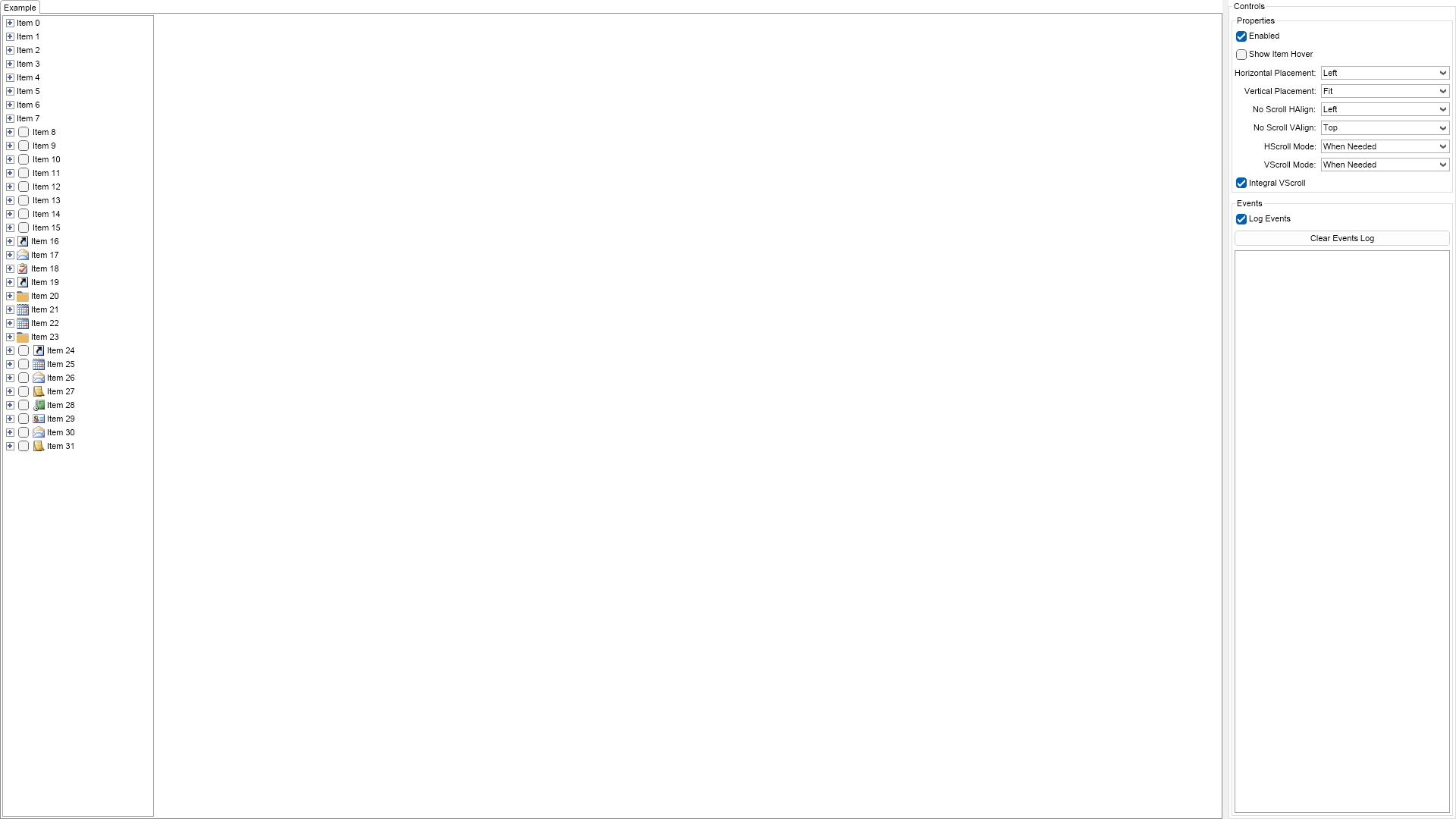
	This example demonstrates how to create a tree view and add items with various content to it - text only items, items with image and text,
	checkable items and so on. Using the controls to the right you can modify the appearance and the behavior of the tree view.

"
        End Function

        '''
        ''' Gets the relevant documentation links for the example
        '''
        '''
        Public Function GetDocumentationUrls() As (String, String)()
            Return {("Tree View", "https://www.nevron.com/docs/openvision/ui-tree-view.html"), ("Widget Elements", "https://www.nevron.com/docs/openvision/ui-widget-elements.html"), ("Containers Overview", "https://www.nevron.com/docs/openvision/ui-containers-overview.html"), ("Label", "https://www.nevron.com/docs/openvision/ui-label.html")}
        End Function

#End Region

#Region "Implementation"

        Private Function CreateTreeViewItem(text As String, hasCheckBox As Boolean, image As Boolean) As NTreeViewItem
            If hasCheckBox = False AndAlso image = False Then
                Dim item As NTreeViewItem = New NTreeViewItem(text)
                item.Tag = text
                Return item
            End If

            Dim stack As NStackPanel = New NStackPanel()
            stack.Direction = ENHVDirection.LeftToRight
            stack.HorizontalSpacing = 3

            If hasCheckBox Then
                Dim checkBox As NCheckBox = New NCheckBox()
                checkBox.VerticalPlacement = ENVerticalPlacement.Center
                stack.Add(checkBox)
            End If

            If image Then
                Dim imageNames = New String() {"Calendar", "Contacts", "Folders", "Journal", "Mail", "Notes", "Shortcuts", "Tasks"}
                Dim imageResources = New NEmbeddedResource() {NResources.RIMG__16x16_Calendar_png, Nevron.Nov.Examples.NResources.RIMG__16x16_Contacts_png, Nevron.Nov.Examples.NResources.RIMG__16x16_Folders_png, Nevron.Nov.Examples.NResources.RIMG__16x16_Journal_png, Nevron.Nov.Examples.NResources.RIMG__16x16_Mail_png, Nevron.Nov.Examples.NResources.RIMG__16x16_Notes_png, Nevron.Nov.Examples.NResources.RIMG__16x16_Shortcuts_png, Nevron.Nov.Examples.NResources.RIMG__16x16_Tasks_png}

                Dim imageIndex = m_Random.Next(imageNames.Length)
                Dim imageName = imageNames(imageIndex)

                Dim imageResource = imageResources(imageIndex)
                Dim icon As NImage = New NImage(New NEmbeddedResourceRef(imageResource))

                Dim imageBox As NImageBox = New NImageBox(icon)
                imageBox.HorizontalPlacement = ENHorizontalPlacement.Center
                imageBox.VerticalPlacement = ENVerticalPlacement.Center

                stack.Add(imageBox)
            End If

            Dim label As NLabel = New NLabel(text)
            label.VerticalPlacement = ENVerticalPlacement.Center
            stack.Add(label)

            Dim treeViewItem As NTreeViewItem = New NTreeViewItem(stack)
            treeViewItem.Tag = text
            treeViewItem.ExpandedChanged += AddressOf OnTreeViewItemExpandedChanged

            Return treeViewItem
        End Function

#End Region

#Region "Event Handlers"

        Private Sub OnTreeViewSelectedPathChanged(args As NValueChangeEventArgs)
            m_EventsLog.LogEvent("Selected: " & m_TreeView.SelectedItem.Tag.ToString())
        End Sub
        Private Sub OnTreeViewItemExpandedChanged(args As NValueChangeEventArgs)
            Dim item = CType(args.TargetNode, NTreeViewItem)
            If item.Expanded Then
                m_EventsLog.LogEvent("Expanded: " & item.Tag.ToString())
            Else
                m_EventsLog.LogEvent("Collapsed: " & item.Tag.ToString())
            End If
        End Sub

#End Region

#Region "Fields"

        Private m_TreeView As NTreeView
        Private m_EventsLog As NExampleEventsLog
        Private m_Random As Random

#End Region

#Region "Static Methods"
#End Region

#Region "Constants"
#End Region

#Region "Nested Types"
#End Region

End Class

 Chart for .NET
 Diagram for .NET
 User Interface for .NET
 Vision for SSRS
 Chart for SSRS
 Gauge for SSRS
 Map for SSRS
 Barcode for SSRS
 Vision for SharePoint
 Chart for SharePoint
 Gauge for SharePoint
 Map for SharePoint
 Barcode for SharePoint
 Open Vision for .NET


 Vision for .NET