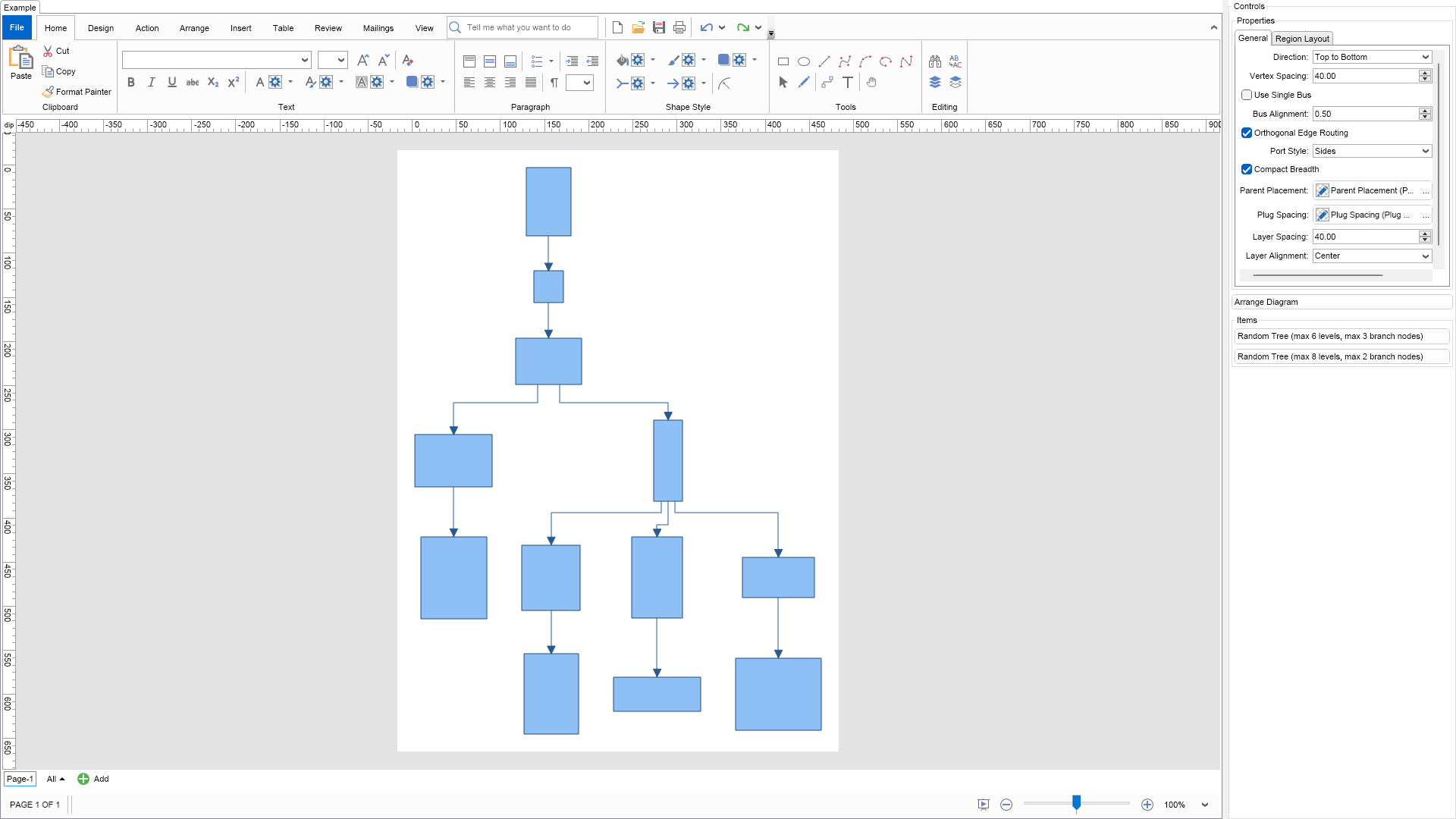
The layered tree layout represents a classical directed tree layout (e.g. with uniform parent placement), which places vertices from the same level in layers. It produces both straight line and orthogonal tree drawings, which is controlled by the OrthogonalEdgeRouting property. The PlugSpacing property controls the spacing between the plugs of a node. You can set a fixed amount of spacing or a proportional spacing, which means that the plugs are distributed along the whole side of the node. The layout satisfies the following aesthetic criteria:
To experiment with the layout just change its properties from the property grid and click the Layout button.
To see the layout in action on a different trees, just click the Random Tree buttons.
| Language: C# |
using Nevron.Nov;
using Nevron.Nov.DataStructures;
using Nevron.Nov.Diagram;
using Nevron.Nov.Diagram.Layout;
using Nevron.Nov.Diagram.Shapes;
using Nevron.Nov.Dom;
using Nevron.Nov.Editors;
using Nevron.Nov.Graphics;
using Nevron.Nov.Layout;
using Nevron.Nov.UI;
using Nevron.Nov.Windows.Forms;
using System.Windows.Forms;
namespace NovWinFormsProject
{
public partial class Form1 : Form
{
#region Constructors
public Form1()
{
InitializeComponent();
// Set form title
Text = "NOV WinForms - NLayeredTreeLayoutExample";
// Create the NOV example and its controls
NWidget exampleContent = CreateExampleContent();
NWidget exampleControls = CreateExampleControls();
if (exampleControls != null)
{
exampleControls.PreferredWidth = 300;
}
// Place the example and its controls in a pair box
NPairBox pairBox = new NPairBox(exampleContent, exampleControls);
pairBox.FillMode = ENStackFillMode.First;
pairBox.FitMode = ENStackFitMode.First;
pairBox.Margins = new NMargins(NDesign.HorizontalSpacing, NDesign.VerticalSpacing);
// Host the example in the form
NNovWidgetHost host = new NNovWidgetHost(pairBox);
host.Dock = DockStyle.Fill;
Controls.Add(host);
}
#endregion
#region Example
public NWidget CreateExampleContent()
{
// Create a simple drawing
NDrawingViewWithRibbon drawingViewWithRibbon = new NDrawingViewWithRibbon();
m_DrawingView = drawingViewWithRibbon.View;
m_DrawingView.Document.HistoryService.Pause();
try
{
InitDiagram(m_DrawingView.Document);
}
finally
{
m_DrawingView.Document.HistoryService.Resume();
}
return drawingViewWithRibbon;
}
public NWidget CreateExampleControls()
{
m_Layout.Changed += OnLayoutChanged;
NStackPanel stack = new NStackPanel();
// property editor
NEditor editor = NDesigner.GetDesigner(m_Layout).CreateStandaloneEditor(m_Layout);
stack.Add(new NGroupBox("Properties", editor));
NButton arrangeButton = new NButton("Arrange Diagram");
arrangeButton.Click += OnArrangeButtonClick;
stack.Add(arrangeButton);
// items stack
NStackPanel itemsStack = new NStackPanel();
// NOTE: For Tree layouts we provide the user with the ability to generate random tree diagrams so that he/she can test the layouts
NButton randomTree1Button = new NButton("Random Tree (max 6 levels, max 3 branch nodes)");
randomTree1Button.Click += OnRandomTree1ButtonClick;
itemsStack.Add(randomTree1Button);
NButton randomTree2Button = new NButton("Random Tree (max 8 levels, max 2 branch nodes)");
randomTree2Button.Click += OnRandomTree2ButtonClick;
itemsStack.Add(randomTree2Button);
stack.Add(new NGroupBox("Items", itemsStack));
return stack;
}
public string GetExampleDescription()
{
return @"
The layered tree layout represents a classical directed tree layout
(e.g. with uniform parent placement), which places vertices from the same level in layers.
It produces both straight line and orthogonal tree drawings, which is controlled by the OrthogonalEdgeRouting property.
The PlugSpacing property controls the spacing between the plugs of a node.
You can set a fixed amount of spacing or a proportional spacing, which means that the plugs
are distributed along the whole side of the node.
The layout satisfies the following aesthetic criteria:
- No edge crossings - edges do not cross each other.
- No vertex-vertex overlaps - vertices do not overlap each other.
- No vertex-edge overlaps - in case of orthogonal edge routing, this criteria is met when the BusBetweenLayers property is set to true.
- Straight line routing - in case the OrthogonalEdgeRouting property is set to false you can consider modifying the
PortStyle property, which controls the anchoring of the lines to the vertex boxes.
- Compactness - you can optimize the compactness of the drawing in the tree breadth dimension
by setting the CompactBreadth property to true.
To experiment with the layout just change its properties from the property grid
and click the Layout button.
To see the layout in action on a different trees, just click the Random Tree buttons.
";
}
///
/// Gets the relevant documentation links for the example
///
///
public (string Name, string Url)[] GetDocumentationUrls()
{
return new[]
{
("Layered Tree Layout", "https://www.nevron.com/docs/openvision/diagram-layered-tree-layout.html"),
("Layouts Overview", "https://www.nevron.com/docs/openvision/diagram-drawing-layouts-overview.html"),
("Graph Regions and Regions Layouts", "https://www.nevron.com/docs/openvision/diagram-graph-regions-and-region-layouts.html"),
};
}
private void InitDiagram(NDrawingDocument drawingDocument)
{
// Hide ports
drawingDocument.Content.ScreenVisibility.ShowPorts = false;
// Create random diagram
NGenericTreeTemplate template = new NGenericTreeTemplate();
template.EdgeUserClass = NDR.StyleSheetNameConnectors;
template.Balanced = false;
template.Levels = 6;
template.BranchNodes = 3;
template.HorizontalSpacing = 10;
template.VerticalSpacing = 10;
template.VertexSize = new NSize(50, 50);
template.VertexSizeDeviation = 1;
template.Create(drawingDocument);
// Arrange diagram
ArrangeDiagram(drawingDocument);
// Fit active page
drawingDocument.Content.ActivePage.ZoomMode = ENZoomMode.Fit;
}
#endregion
#region Implementation
///
/// Arranges the shapes in the active page.
///
///
private void ArrangeDiagram(NDrawingDocument drawingDocument)
{
// get all top-level shapes that reside in the active page
NPage activePage = drawingDocument.Content.ActivePage;
NList shapes = activePage.GetShapes(false);
// create a layout context and use it to arrange the shapes using the current layout
NDrawingLayoutContext layoutContext = new NDrawingLayoutContext(drawingDocument, activePage);
m_Layout.Arrange(shapes.CastAll | Language: VB.NET |
Imports Nevron.Nov
Imports Nevron.Nov.Diagram
Imports Nevron.Nov.Diagram.Layout
Imports Nevron.Nov.Diagram.Shapes
Imports Nevron.Nov.Dom
Imports Nevron.Nov.Editors
Imports Nevron.Nov.Graphics
Imports Nevron.Nov.Layout
Imports Nevron.Nov.UI
Imports Nevron.Nov.Windows.Wpf
Class MainWindow
#Region "Constructors"
Public Sub New()
' This call is required by the designer.
InitializeComponent()
' Add any initialization after the InitializeComponent() call.
' Set form title
Title = "NOV WPF - NLayeredTreeLayoutExample"
' Create the NOV example and its controls
Dim exampleContent As NWidget = CreateExampleContent()
Dim exampleControls As NWidget = CreateExampleControls()
If Not exampleControls Is Nothing Then
exampleControls.PreferredWidth = 300
End If
' Place the example and its controls in a pair box
Dim pairBox As NPairBox = New NPairBox(exampleContent, exampleControls)
pairBox.FillMode = ENStackFillMode.First
pairBox.FitMode = ENStackFitMode.First
pairBox.Margins = New NMargins(NDesign.HorizontalSpacing, NDesign.VerticalSpacing)
' Host the example in the form
Dim host As NNovWidgetHost(Of NWidget) = New NNovWidgetHost(Of NWidget)(pairBox)
Content = host
End Sub
#End Region
#Region "Example"
Public Function CreateExampleContent() As NWidget
' Create a simple drawing
Dim drawingViewWithRibbon As NDrawingViewWithRibbon = New NDrawingViewWithRibbon()
m_DrawingView = drawingViewWithRibbon.View
m_DrawingView.Document.HistoryService.Pause()
Try
InitDiagram(m_DrawingView.Document)
Finally
m_DrawingView.Document.HistoryService.Resume()
End Try
Return drawingViewWithRibbon
End Function
Public Function CreateExampleControls() As NWidget
Me.m_Layout.Changed += AddressOf OnLayoutChanged
Dim stack As NStackPanel = New NStackPanel()
' property editor
Dim editor As NEditor = NDesigner.GetDesigner(m_Layout).CreateStandaloneEditor(m_Layout)
stack.Add(New NGroupBox("Properties", editor))
Dim arrangeButton As NButton = New NButton("Arrange Diagram")
arrangeButton.Click += AddressOf OnArrangeButtonClick
stack.Add(arrangeButton)
' items stack
Dim itemsStack As NStackPanel = New NStackPanel()
' NOTE: For Tree layouts we provide the user with the ability to generate random tree diagrams so that he/she can test the layouts
Dim randomTree1Button As NButton = New NButton("Random Tree (max 6 levels, max 3 branch nodes)")
randomTree1Button.Click += AddressOf OnRandomTree1ButtonClick
itemsStack.Add(randomTree1Button)
Dim randomTree2Button As NButton = New NButton("Random Tree (max 8 levels, max 2 branch nodes)")
randomTree2Button.Click += AddressOf OnRandomTree2ButtonClick
itemsStack.Add(randomTree2Button)
stack.Add(New NGroupBox("Items", itemsStack))
Return stack
End Function
Public Function GetExampleDescription() As String
Return "
The layered tree layout represents a classical directed tree layout
(e.g. with uniform parent placement), which places vertices from the same level in layers.
It produces both straight line and orthogonal tree drawings, which is controlled by the OrthogonalEdgeRouting property.
The PlugSpacing property controls the spacing between the plugs of a node.
You can set a fixed amount of spacing or a proportional spacing, which means that the plugs
are distributed along the whole side of the node.
The layout satisfies the following aesthetic criteria:
- No edge crossings - edges do not cross each other.
- No vertex-vertex overlaps - vertices do not overlap each other.
- No vertex-edge overlaps - in case of orthogonal edge routing, this criteria is met when the BusBetweenLayers property is set to true.
- Straight line routing - in case the OrthogonalEdgeRouting property is set to false you can consider modifying the
PortStyle property, which controls the anchoring of the lines to the vertex boxes.
- Compactness - you can optimize the compactness of the drawing in the tree breadth dimension
by setting the CompactBreadth property to true.
To experiment with the layout just change its properties from the property grid
and click the Layout button.
To see the layout in action on a different trees, just click the Random Tree buttons.
"
End Function
'''
''' Gets the relevant documentation links for the example
'''
'''
Public Function GetDocumentationUrls() As (String, String)()
Return {("Layered Tree Layout", "https://www.nevron.com/docs/openvision/diagram-layered-tree-layout.html"), ("Layouts Overview", "https://www.nevron.com/docs/openvision/diagram-drawing-layouts-overview.html"), ("Graph Regions and Regions Layouts", "https://www.nevron.com/docs/openvision/diagram-graph-regions-and-region-layouts.html")}
End Function
Private Sub InitDiagram(drawingDocument As NDrawingDocument)
' Hide ports
drawingDocument.Content.ScreenVisibility.ShowPorts = False
' Create random diagram
Dim template As NGenericTreeTemplate = New NGenericTreeTemplate()
template.EdgeUserClass = NDR.StyleSheetNameConnectors
template.Balanced = False
template.Levels = 6
template.BranchNodes = 3
template.HorizontalSpacing = 10
template.VerticalSpacing = 10
template.VertexSize = New NSize(50, 50)
template.VertexSizeDeviation = 1
template.Create(drawingDocument)
' Arrange diagram
ArrangeDiagram(drawingDocument)
' Fit active page
drawingDocument.Content.ActivePage.ZoomMode = ENZoomMode.Fit
End Sub
#End Region
#Region "Implementation"
'''
''' Arranges the shapes in the active page.
'''
'''
Private Sub ArrangeDiagram(drawingDocument As NDrawingDocument)
' get all top-level shapes that reside in the active page
Dim activePage = drawingDocument.Content.ActivePage
Dim shapes = activePage.GetShapes(False)
' create a layout context and use it to arrange the shapes using the current layout
Dim layoutContext As NDrawingLayoutContext = New NDrawingLayoutContext(drawingDocument, activePage)
m_Layout.Arrange(shapes.CastAll(Of Object)(), layoutContext)
' size the page to the content size
activePage.SizeToContent()
End Sub
#End Region
#Region "Event Handlers"
Private Sub OnRandomTree1ButtonClick(arg As NEventArgs)
Dim drawingDocument = m_DrawingView.Document
drawingDocument.StartHistoryTransaction("Create Random Tree 1")
Try
drawingDocument.Content.ActivePage.Items.Clear()
' create a random tree
Dim tree As NGenericTreeTemplate = New NGenericTreeTemplate()
tree.EdgeUserClass = NDR.StyleSheetNameConnectors
tree.Levels = 6
tree.BranchNodes = 3
tree.HorizontalSpacing = 10
tree.VerticalSpacing = 10
tree.VertexShape = VertexShape
tree.VertexSize = VertexSize
tree.Balanced = False
tree.VertexSizeDeviation = 1
tree.Create(drawingDocument)
' layout the tree
ArrangeDiagram(drawingDocument)
Finally
drawingDocument.CommitHistoryTransaction()
End Try
End Sub
Private Sub OnRandomTree2ButtonClick(arg As NEventArgs)
Dim drawingDocument = m_DrawingView.Document
drawingDocument.StartHistoryTransaction("Create Random Tree 2")
Try
drawingDocument.Content.ActivePage.Items.Clear()
' create a random tree
Dim tree As NGenericTreeTemplate = New NGenericTreeTemplate()
tree.EdgeUserClass = NDR.StyleSheetNameConnectors
tree.Levels = 8
tree.BranchNodes = 2
tree.HorizontalSpacing = 10
tree.VerticalSpacing = 10
tree.VertexShape = VertexShape
tree.VertexSize = VertexSize
tree.Balanced = False
tree.VertexSizeDeviation = 1
tree.Create(drawingDocument)
' layout the tree
ArrangeDiagram(drawingDocument)
Finally
drawingDocument.CommitHistoryTransaction()
End Try
End Sub
Private Sub OnLayoutChanged(arg As NEventArgs)
ArrangeDiagram(m_DrawingView.Document)
End Sub
Private Sub OnArrangeButtonClick(arg As NEventArgs)
ArrangeDiagram(m_DrawingView.Document)
End Sub
#End Region
#Region "Fields"
Private m_DrawingView As NDrawingView
Private m_Layout As NLayeredTreeLayout = New NLayeredTreeLayout()
#End Region
#Region "Static Methods"
#End Region
#Region "Constants"
Private Const VertexShape As ENBasicShape = ENBasicShape.Rectangle
Private Shared ReadOnly VertexSize As NSize = New NSize(60, 60)
#End Region
#Region "Nested Types"
#End Region
End Class