using Nevron.Nov;
using Nevron.Nov.Diagram;
using Nevron.Nov.Dom;
using Nevron.Nov.Graphics;
using Nevron.Nov.Layout;
using Nevron.Nov.Text;
using Nevron.Nov.UI;
using Nevron.Nov.Windows.Forms;
using System.Windows.Forms;

namespace NovWinFormsProject
{
	public partial class Form1 : Form
	{
		#region Constructors

		public Form1()
		{
			InitializeComponent();

			// Set form title
			Text = "NOV WinForms - NTableResizeModeExample";

			// Create the NOV example and its controls
			NWidget exampleContent = CreateExampleContent();
			NWidget exampleControls = CreateExampleControls();
			if (exampleControls != null)
			{
				exampleControls.PreferredWidth = 300;
			}

			// Place the example and its controls in a pair box
			NPairBox pairBox = new NPairBox(exampleContent, exampleControls);
			pairBox.FillMode = ENStackFillMode.First;
			pairBox.FitMode = ENStackFitMode.First;
			pairBox.Margins = new NMargins(NDesign.HorizontalSpacing, NDesign.VerticalSpacing);

			// Host the example in the form
			NNovWidgetHost host = new NNovWidgetHost(pairBox);
			host.Dock = DockStyle.Fill;
			Controls.Add(host);
		}

		#endregion

		#region Example

		public NWidget CreateExampleContent()
		{
			// Create a simple drawing
			NDrawingViewWithRibbon drawingViewWithRibbon = new NDrawingViewWithRibbon();
			m_DrawingView = drawingViewWithRibbon.View;

			m_DrawingView.Document.HistoryService.Pause();
			try
			{
				InitDiagram(m_DrawingView.Document);
			}
			finally
			{
				m_DrawingView.Document.HistoryService.Resume();
			}

			return drawingViewWithRibbon;
		}
		public NWidget CreateExampleControls()
		{
			return null;
		}
		public string GetExampleDescription()
        {
            return @"
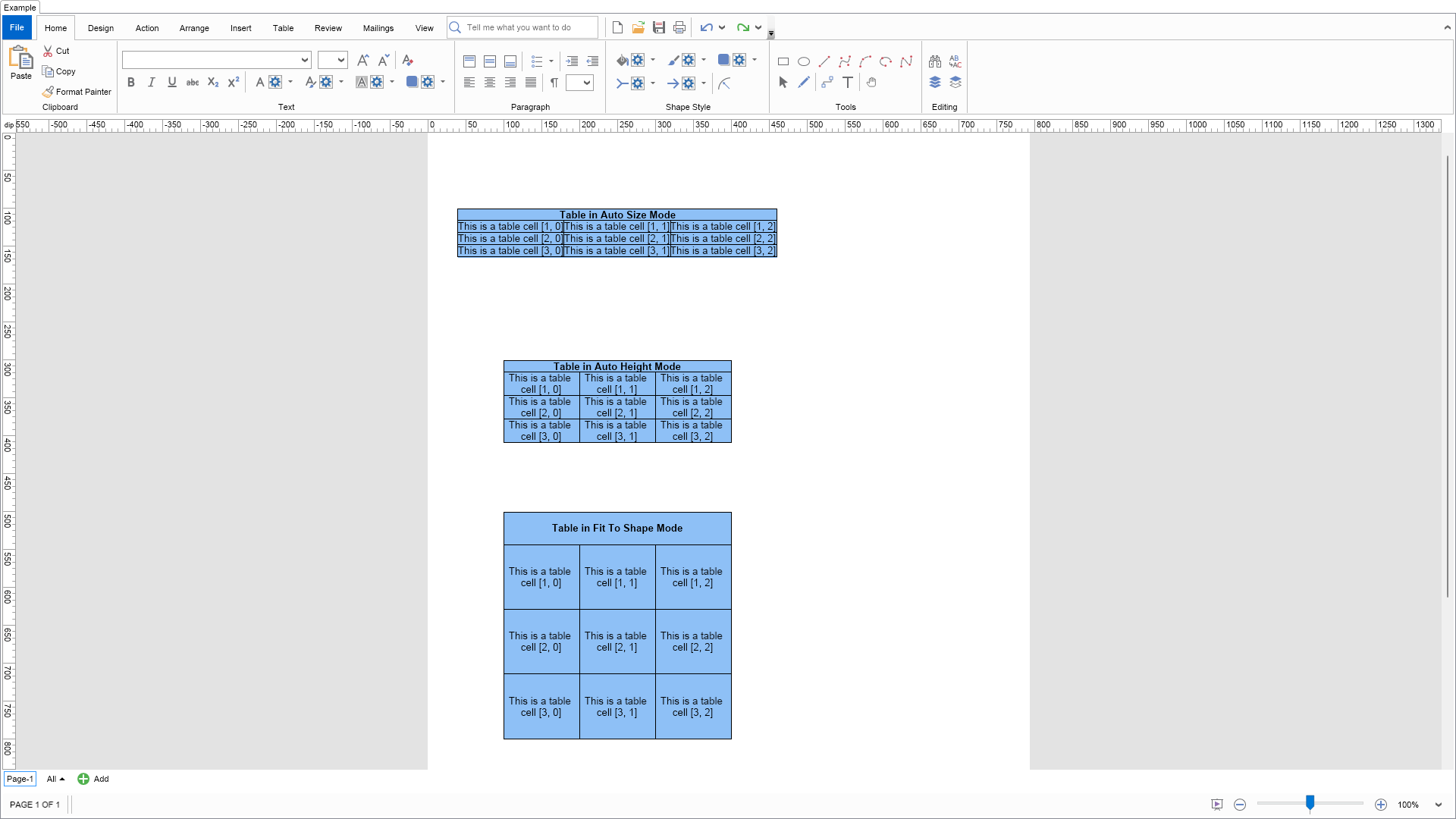
				Demonstrates the table resize modes. Table support three resize modes:

				AutoSize - The table desired size determines the size of the table containing shape

				AutoHeight - The table containing shape defines the table witdth, while the table contents defines the table containing shape height

				Stretch - The table is stretched to fit the bounds specified by its containing shape. If the table cannot fit it will resize the table containing shape automatically.

			";
        }

		///
		/// Gets the relevant documentation links for the example
		///
		///
		public (string Name, string Url)[] GetDocumentationUrls()
		{
			return new[]
			{
				("Shapes", "https://www.nevron.com/docs/openvision/diagram-shapes.html"),
				("Rich Text Tables", "https://www.nevron.com/docs/openvision/rich-text-tables.html"),
			};
		}

        private void InitDiagram(NDrawingDocument drawingDocument)
        {
            NDrawing drawing = drawingDocument.Content;
            NPage activePage = drawing.ActivePage;

            // hide the grid
            drawing.ScreenVisibility.ShowGrid = false;

			string[] tableDescription = new string[] { "Table in Auto Size Mode", "Table in Auto Height Mode", "Table in Fit To Shape Mode" };
			ENTableBlockResizeMode[] tableBlockResizeMode = new ENTableBlockResizeMode[] { ENTableBlockResizeMode.AutoSize, ENTableBlockResizeMode.AutoHeight, ENTableBlockResizeMode.FitToShape };

			double y = 100;
			for (int i = 0; i < 3; i++)
			{
				NShape shape = new NShape();
				shape.SetBounds(new NRectangle(100, y, 300, 300));

				y += 200;

				// create table
				NTableBlock tableBlock = CreateTableBlock(tableDescription[i]);

				tableBlock.Content.AllowSpacingBetweenCells = false;
				tableBlock.ResizeMode = tableBlockResizeMode[i];
				shape.TextBlock = tableBlock;

				activePage.Items.AddChild(shape);
			}
		}

		private NTableBlock CreateTableBlock(string description)
		{
			NTableBlock tableBlock = new NTableBlock(4, 3, NBorder.CreateFilledBorder(NColor.Black), new NMargins(1));

			NTableBlockContent tableBlockContent = tableBlock.Content;

			NTableCell tableCell = tableBlock.Content.Rows[0].Cells[0];
			tableCell.ColSpan = int.MaxValue;

			tableCell.Blocks.Clear();
			NParagraph par = new NParagraph(description);
			par.FontStyleBold = true;
			tableCell.Blocks.Add(par);

			for (int rowIndex = 1; rowIndex < tableBlockContent.Rows.Count; rowIndex++)
			{
				NTableRow row = tableBlockContent.Rows[rowIndex];

				for (int colIndex = 0; colIndex < tableBlockContent.Columns.Count; colIndex++)
				{
					NTableCell cell = row.Cells[colIndex];

					cell.Blocks.Clear();
					cell.Blocks.Add(new NParagraph("This is a table cell [" + rowIndex.ToString() + ", " + colIndex.ToString() + "]"));
				}
			}

			NTableCellIterator iter = new NTableCellIterator(tableBlockContent);

			while (iter.MoveNext())
			{
				iter.Current.VerticalAlignment = ENVAlign.Center;
				iter.Current.HorizontalAlignment = ENAlign.Center;
			}

			// make sure all columns are percentage based
			double percent = 100 / tableBlockContent.Columns.Count;

			for (int i = 0; i < tableBlockContent.Columns.Count; i++)
			{
				tableBlockContent.Columns[i].PreferredWidth = new Nevron.Nov.NMultiLength(Nevron.Nov.ENMultiLengthUnit.Percentage, percent);
			}

			return tableBlock;
		}

		#endregion

		#region Implementation

		///
		/// Adds rich formatted text to the specified text block content
		///
		///
		private void AddFormattedTextToContent(NTextBlockContent content)
		{
			content.Blocks.Add(GetTitleParagraph("Bullet lists allow you to apply automatic numbering on paragraphs or groups of blocks.", 1));

			// setting bullet list template type
			{
				content.Blocks.Add(GetTitleParagraph("Following are bullet lists with different formatting", 2));

				ENBulletListTemplateType[] values = NEnum.GetValues();
				string[] names = NEnum.GetNames();

				string itemText = "Bullet List Item";

				for (int i = 0; i < values.Length - 1; i++)
				{
					NGroupBlock group = new NGroupBlock();
					content.Blocks.Add(group);
					group.MarginTop = 10;
					group.MarginBottom = 10;

					NBulletList bulletList = new NBulletList(values[i]);
					content.BulletLists.Add(bulletList);

					for (int j = 0; j < 3; j++)
					{
						NParagraph paragraph = new NParagraph(itemText + j.ToString());
						NBulletInline bullet = new NBulletInline();
						bullet.List = bulletList;
						paragraph.Bullet = bullet;

						group.Blocks.Add(paragraph);
					}
				}
			}

			// nested bullet lists
			{
				content.Blocks.Add(GetTitleParagraph("Following is an example of bullets with different bullet level", 2));

				NBulletList bulletList = new NBulletList(ENBulletListTemplateType.Decimal);
				content.BulletLists.Add(bulletList);

				NGroupBlock group = new NGroupBlock();
				content.Blocks.Add(group);

				for (int i = 0; i < 3; i++)
				{
					NParagraph par = new NParagraph("Bullet List Item" + i.ToString(), bulletList, 0);
					group.Blocks.Add(par);

					for (int j = 0; j < 2; j++)
					{
						NParagraph nestedPar = new NParagraph("Nested Bullet List Item" + i.ToString(), bulletList, 1);
						nestedPar.MarginLeft = 10;

						group.Blocks.Add(nestedPar);
					}
				}
			}
		}
		///
		///
		///
		///
		///
		///
		internal static NParagraph GetTitleParagraphNoBorder(string text, int level)
		{
			double fontSize = 10;
			ENFontStyle fontStyle = ENFontStyle.Regular;

			switch (level)
			{
				case 1:
					fontSize = 16;
					fontStyle = ENFontStyle.Bold;
					break;
				case 2:
					fontSize = 10;
					fontStyle = ENFontStyle.Bold;
					break;
			}

			NParagraph paragraph = new NParagraph();

			paragraph.HorizontalAlignment = ENAlign.Left;
			paragraph.FontSize = fontSize;
			paragraph.FontStyle = fontStyle;

			NTextInline textInline = new NTextInline(text);

			textInline.FontStyle = fontStyle;
			textInline.FontSize = fontSize;

			paragraph.Inlines.Add(textInline);

			return paragraph;

		}
		///
		/// Gets a paragraph with title formatting
		///
		///
		///
		internal static NParagraph GetTitleParagraph(string text, int level)
		{
			NColor color = NColor.Black;

			NParagraph paragraph = GetTitleParagraphNoBorder(text, level);
			paragraph.HorizontalAlignment = ENAlign.Left;

			paragraph.Border = CreateLeftTagBorder(color);
			paragraph.BorderThickness = new NMargins(5.0, 0.0, 0.0, 0.0);

			return paragraph;
		}
		///
		/// Creates a left tag border with the specified border
		///
		///
		///
		private static NBorder CreateLeftTagBorder(NColor color)
		{
			NBorder border = new NBorder();

			border.LeftSide = new NBorderSide();
			border.LeftSide.Fill = new NColorFill(color);

			return border;
		}

		#endregion

		#region Event Handlers
		#endregion

		#region Fields

		private NDrawingView m_DrawingView;

		#endregion

		#region Static Methods
		#endregion

		#region Constants
		#endregion

		#region Nested Types
		#endregion
	}
}

 Chart for .NET
 Diagram for .NET
 User Interface for .NET
 Vision for SSRS
 Chart for SSRS
 Gauge for SSRS
 Map for SSRS
 Barcode for SSRS
 Vision for SharePoint
 Chart for SharePoint
 Gauge for SharePoint
 Map for SharePoint
 Barcode for SharePoint
 Open Vision for .NET


 Vision for .NET