Drawing Explorer Customization Example for WPF

Drawing Explorer Customization Example for WPF

Nevron NOV Diagram for WPF ships with hundreds of examples with full source code, as part of the Nevron Open Vision Suite. All WPF Diagram examples are also available as a stand-alone Visual Studio solution in C# and VB.NET, which you can download from the links below.

Drawing Explorer Customization Example for WPF Description

This example demonstrates how to customize the context menus displayed by the Drawing Explorer.

Much of the appearance and behavior of the tree view items displayed by the Drawing Explorer is controlled by instances of the NDrawingExplorerNodePresenter class. There is an instance of a specific NDrawingExplorerNodePresenter-derived class that handles the context menus displayed for the different elements of a drawing—pages, layers, shapes, etc. In this example, we have created a custom NDrawingExplorerNodePresenter class that adds a custom command to the shapes' context menu.

To see it in action, right-click on any shape inside the Drawing Explorer, and a custom command with a smiley face should appear.
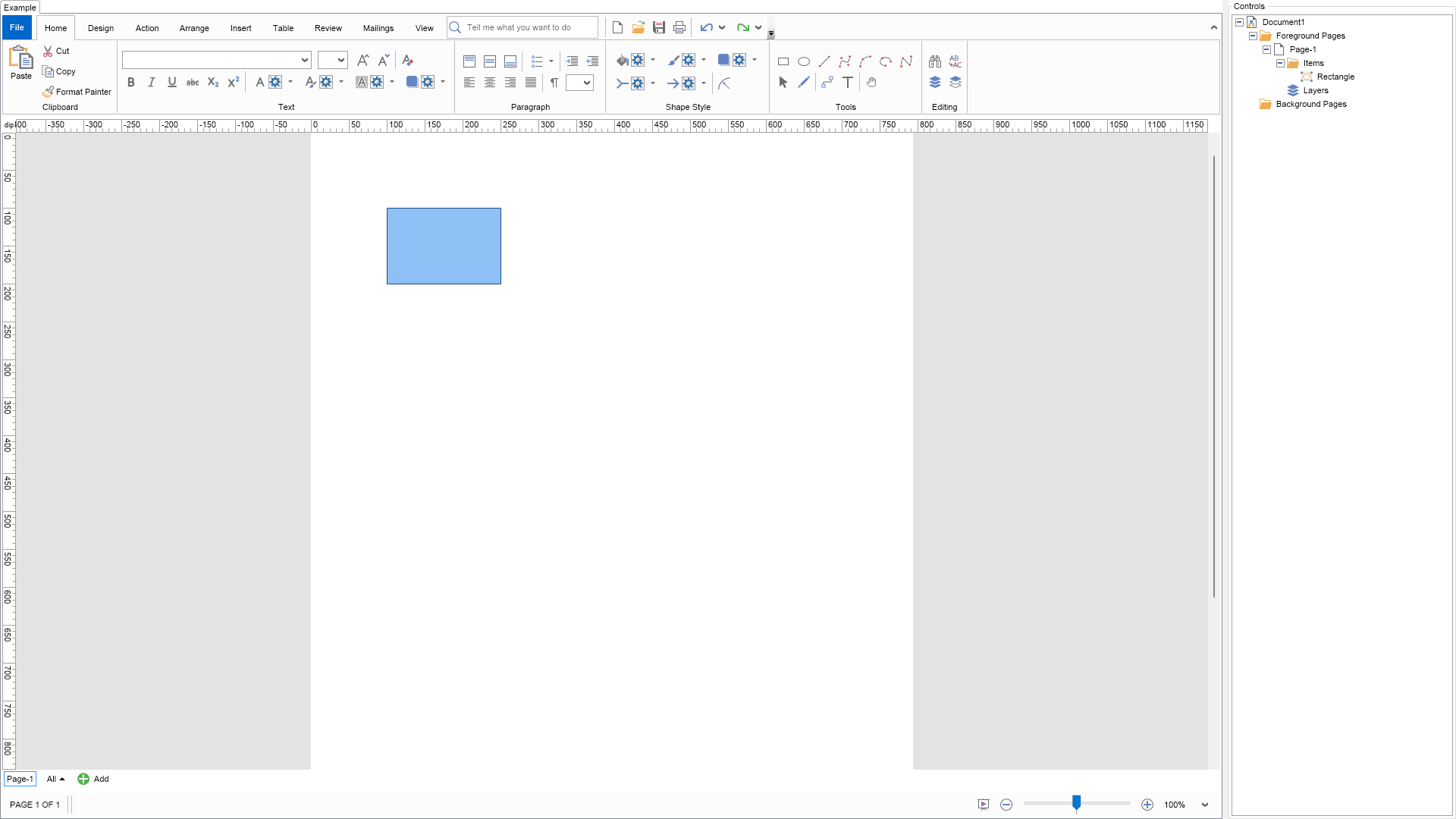

Drawing Explorer Customization Example

C# Drawing Explorer Customization Example Code for Nevron Diagram for WPF
Language: C#

using Nevron.Nov;
using Nevron.Nov.Diagram;
using Nevron.Nov.Diagram.Shapes;
using Nevron.Nov.Diagram.UI;
using Nevron.Nov.Dom;
using Nevron.Nov.Graphics;
using Nevron.Nov.Layout;
using Nevron.Nov.UI;
using Nevron.Nov.Windows.Forms;
using System.Windows.Forms;

namespace NovWinFormsProject
{
	public partial class Form1 : Form
	{
		#region Constructors

		public Form1()
		{
			InitializeComponent();

			// Set form title
			Text = "NOV WinForms - NDrawingExplorerCustomizationExample";

			// Create the NOV example and its controls
			NWidget exampleContent = CreateExampleContent();
			NWidget exampleControls = CreateExampleControls();
			if (exampleControls != null)
			{
				exampleControls.PreferredWidth = 300;
			}

			// Place the example and its controls in a pair box
			NPairBox pairBox = new NPairBox(exampleContent, exampleControls);
			pairBox.FillMode = ENStackFillMode.First;
			pairBox.FitMode = ENStackFitMode.First;
			pairBox.Margins = new NMargins(NDesign.HorizontalSpacing, NDesign.VerticalSpacing);

			// Host the example in the form
			NNovWidgetHost host = new NNovWidgetHost(pairBox);
			host.Dock = DockStyle.Fill;
			Controls.Add(host);
		}

		#endregion

		#region Example

		public NWidget CreateExampleContent()
		{
			// Create a simple drawing
			m_DrawingView = new NDrawingView();

			m_DrawingView.Document.HistoryService.Pause();
			try
			{
				InitDiagram(m_DrawingView.Document);
			}
			finally
			{
				m_DrawingView.Document.HistoryService.Resume();
			}

			NDiagramRibbonBuilder ribbonBuilder = new NDiagramRibbonBuilder();
			return ribbonBuilder.CreateUI(m_DrawingView);
		}
		public NWidget CreateExampleControls()
		{
			NDrawingExplorer drawingExplorer = new NDrawingExplorer();
            drawingExplorer.DrawingView = m_DrawingView;
			drawingExplorer.TreeView.ExpandAll(true);

            // associate a custom shape presenter in order to context menus for shapes
            CustomShapePresenter customShapePresenter = new CustomShapePresenter();
			drawingExplorer.SetTypePresenter(typeof(NShape), customShapePresenter);

            return drawingExplorer;
		}
		public string GetExampleDescription()
		{
			return @"

This example demonstrates how to customize the context menus displayed by the Drawing Explorer.

Much of the appearance and behavior of the tree view items displayed by the Drawing Explorer is controlled by instances of the NDrawingExplorerNodePresenter class. There is an instance of a specific NDrawingExplorerNodePresenter-derived class that handles the context menus displayed for the different elements of a drawing—pages, layers, shapes, etc. In this example, we have created a custom NDrawingExplorerNodePresenter class that adds a custom command to the shapes' context menu.

To see it in action, right-click on any shape inside the Drawing Explorer, and a custom command with a smiley face should appear.

"; } /// /// Gets the relevant documentation links for the example /// /// public (string Name, string Url)[] GetDocumentationUrls() { return new[] { ("Drawing Explorer", "https://www.nevron.com/docs/openvision/diagram-drawing-explorer.html"), ("Diagram Document Object Model (DDOM)", "https://www.nevron.com/docs/openvision/diagram-document-object-model.html"), }; } private void InitDiagram(NDrawingDocument drawingDocument) { NShape shape = new NBasicShapeFactory().CreateShape(ENBasicShape.Rectangle); shape.SetBounds(100, 100, 150, 100); drawingDocument.Content.ActivePage.Items.Add(shape); } #endregion #region Implementation #endregion #region Event Handlers #endregion #region Fields private NDrawingView m_DrawingView; #endregion #region Static Methods #endregion #region Constants #endregion #region Nested Types #endregion } }

Download a fully functional C# (.cs) Drawing Explorer Customization Example for WPF Solution

VB.NET Drawing Explorer Customization Example Code for Nevron Diagram for WPF
Language: VB.NET

Imports Nevron.Nov
Imports Nevron.Nov.Diagram
Imports Nevron.Nov.Diagram.Shapes
Imports Nevron.Nov.Diagram.UI
Imports Nevron.Nov.Dom
Imports Nevron.Nov.Graphics
Imports Nevron.Nov.Layout
Imports Nevron.Nov.UI
Imports Nevron.Nov.Windows.Wpf

Class MainWindow

#Region "Constructors"

	Public Sub New()
		' This call is required by the designer.
		InitializeComponent()

		' Add any initialization after the InitializeComponent() call.

		' Set form title
		Title = "NOV WPF - NDrawingExplorerCustomizationExample"

		' Create the NOV example and its controls
		Dim exampleContent As NWidget = CreateExampleContent()
		Dim exampleControls As NWidget = CreateExampleControls()
		If Not exampleControls Is Nothing Then
			exampleControls.PreferredWidth = 300
		End If

		' Place the example and its controls in a pair box
		Dim pairBox As NPairBox = New NPairBox(exampleContent, exampleControls)
		pairBox.FillMode = ENStackFillMode.First
		pairBox.FitMode = ENStackFitMode.First
		pairBox.Margins = New NMargins(NDesign.HorizontalSpacing, NDesign.VerticalSpacing)

		' Host the example in the form
		Dim host As NNovWidgetHost(Of NWidget) = New NNovWidgetHost(Of NWidget)(pairBox)
		Content = host
	End Sub


#End Region

#Region "Example"

        Public Function CreateExampleContent() As NWidget
            ' Create a simple drawing
            m_DrawingView = New NDrawingView()

            m_DrawingView.Document.HistoryService.Pause()
            Try
                InitDiagram(m_DrawingView.Document)
            Finally
                m_DrawingView.Document.HistoryService.Resume()
            End Try

            Dim ribbonBuilder As NDiagramRibbonBuilder = New NDiagramRibbonBuilder()
            Return ribbonBuilder.CreateUI(m_DrawingView)
        End Function
        Public Function CreateExampleControls() As NWidget
            Dim drawingExplorer As NDrawingExplorer = New NDrawingExplorer()
            drawingExplorer.DrawingView = m_DrawingView
            drawingExplorer.TreeView.ExpandAll(True)

            ' associate a custom shape presenter in order to override context menus for shapes
            Dim customShapePresenter As CustomShapePresenter = New CustomShapePresenter()
            drawingExplorer.SetTypePresenter(GetType(NShape), customShapePresenter)

            Return drawingExplorer
        End Function
        Public Function GetExampleDescription() As String
            Return "

This example demonstrates how to customize the context menus displayed by the Drawing Explorer.

Much of the appearance and behavior of the tree view items displayed by the Drawing Explorer is controlled by instances of the NDrawingExplorerNodePresenter class. There is an instance of a specific NDrawingExplorerNodePresenter-derived class that handles the context menus displayed for the different elements of a drawing—pages, layers, shapes, etc. In this example, we have created a custom NDrawingExplorerNodePresenter class that adds a custom command to the shapes' context menu.

To see it in action, right-click on any shape inside the Drawing Explorer, and a custom command with a smiley face should appear.

" End Function ''' ''' Gets the relevant documentation links for the example ''' ''' Public Function GetDocumentationUrls() As (String, String)() Return {("Drawing Explorer", "https://www.nevron.com/docs/openvision/diagram-drawing-explorer.html"), ("Diagram Document Object Model (DDOM)", "https://www.nevron.com/docs/openvision/diagram-document-object-model.html")} End Function Private Sub InitDiagram(drawingDocument As NDrawingDocument) Dim shape As NShape = New NBasicShapeFactory().CreateShape(ENBasicShape.Rectangle) shape.SetBounds(100, 100, 150, 100) drawingDocument.Content.ActivePage.Items.Add(shape) End Sub #End Region #Region "Implementation" #End Region #Region "Event Handlers" #End Region #Region "Fields" Private m_DrawingView As NDrawingView #End Region #Region "Static Methods" #End Region #Region "Constants" #End Region #Region "Nested Types" #End Region End Class

Download a fully functional VB.NET (.vb) Drawing Explorer Customization Example for WPF Solution