using Nevron.Nov;
using Nevron.Nov.Barcode;
using Nevron.Nov.DataStructures;
using Nevron.Nov.Diagram;
using Nevron.Nov.Diagram.Editors;
using Nevron.Nov.Diagram.Shapes;
using Nevron.Nov.Diagram.UI;
using Nevron.Nov.Dom;
using Nevron.Nov.Editors;
using Nevron.Nov.Graphics;
using Nevron.Nov.Layout;
using Nevron.Nov.Text;
using Nevron.Nov.UI;
using Nevron.Nov.Windows.Forms;
using System;
using System.Windows.Forms;

namespace NovWinFormsProject
{
	public partial class Form1 : Form
	{
		#region Constructors

		public Form1()
		{
			InitializeComponent();

			// Set form title
			Text = "NOV WinForms - NPageNavigatorExample";

			// Create the NOV example and its controls
			NWidget exampleContent = CreateExampleContent();
			NWidget exampleControls = CreateExampleControls();
			if (exampleControls != null)
			{
				exampleControls.PreferredWidth = 300;
			}

			// Place the example and its controls in a pair box
			NPairBox pairBox = new NPairBox(exampleContent, exampleControls);
			pairBox.FillMode = ENStackFillMode.First;
			pairBox.FitMode = ENStackFitMode.First;
			pairBox.Margins = new NMargins(NDesign.HorizontalSpacing, NDesign.VerticalSpacing);

			// Host the example in the form
			NNovWidgetHost host = new NNovWidgetHost(pairBox);
			host.Dock = DockStyle.Fill;
			Controls.Add(host);
		}

		#endregion

        #region Example

        public NWidget CreateExampleContent()
        {
            // create a simple drawing
            NDrawingViewWithRibbon drawingViewWithRibbon = new NDrawingViewWithRibbon();
            m_DrawingView = drawingViewWithRibbon.View;

            m_DrawingView.Document.HistoryService.Pause();
            try
            {
                InitDiagram(m_DrawingView.Document);
            }
            finally
            {
                m_DrawingView.Document.HistoryService.Resume();
            }

            return drawingViewWithRibbon;
        }
        public NWidget CreateExampleControls()
        {
            NStackPanel stack = new NStackPanel();

            // Create the property editors
            NList editors = NDesigner.GetDesigner(m_DrawingView.PageNavigator).CreateMemberEditors(
                m_DrawingView.PageNavigator,
                NPageNavigator.AllowAddPageProperty,
                NPageNavigator.AllowDeletePageProperty,
                NPageNavigator.AllowEditPageProperty,
                NPageNavigator.AllowReorderPagesProperty,
                NPageNavigator.ShowForegroundPagesProperty,
                NPageNavigator.ShowBackgroundPagesProperty);

            for (int i = 0, count = editors.Count; i < count; i++)
            {
                stack.Add(editors[i]);
            }

            return new NUniSizeBoxGroup(stack);
        }
        public string GetExampleDescription()
        {
            return @"

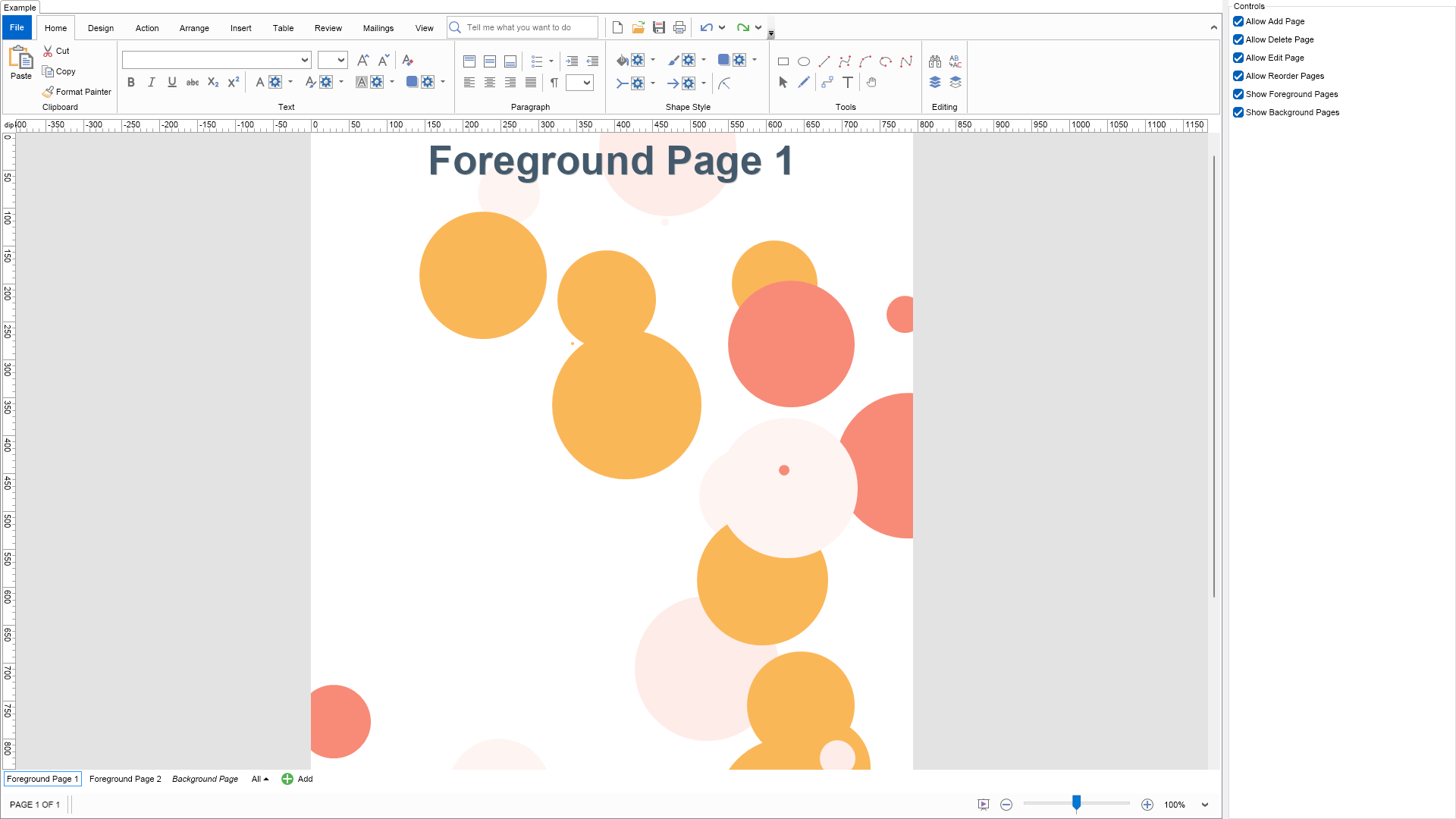
This example demonstrates the Page Navigator. The Page Navigator is a widget positioned in the bottom-left corner of the drawing view.
It allows users to switch between different drawing pages and manage their order via drag-and-drop functionality.
Additionally, the Page Navigator supports adding new pages and provides per-page context menus for quick operations, including deleting, renaming, duplicating, and configuring grid, rulers, and page setup.


The Page Navigator is a part of each NDrawingView and is accessible from its PageNavigator property.


Use the controls on the right side to control the allowed operations that the user can perform upon the pages through the Page Navigator.

";
        }

        ///
        /// Gets the relevant documentation links for the example
        ///
        ///
        public (string Name, string Url)[] GetDocumentationUrls()
        {
            return new[]
            {
                ("Page Navigator", "https://www.nevron.com/docs/openvision/diagram-page-navigator.html"),
                ("Pages", "https://www.nevron.com/docs/openvision/diagram-pages.html"),
            };
        }

        private void InitDiagram(NDrawingDocument drawingDocument)
        {
            NDrawing drawing = drawingDocument.Content;

            drawing.Pages.Clear();

            NColor[] colors = new NColor[] {
                new NColor(247, 139, 119),
                new NColor(254, 236, 233),
                new NColor(254, 244, 242),
                new NColor(250, 183, 88)
            };

            // create a page for background
            NPage backgroundPage = new NPage();
            backgroundPage.Title = "Background Page";
            backgroundPage.PageType = ENPageType.Background;
            Random rnd = new Random();

            // create bubbles in this page
            NBasicShapeFactory factory = new NBasicShapeFactory();
            for (int i = 0; i < 30; i++)
            {
                // select random x, y, size and color
                double x = (double)rnd.Next((int)backgroundPage.Width);
                double y = (double)rnd.Next((int)backgroundPage.Height);
                double size = (double)rnd.Next(200);
                int colorIndex = (byte)rnd.Next(colors.Length);

                NShape shape = factory.CreateShape(ENBasicShape.Circle);
                backgroundPage.Items.Add(shape);
                shape.SetBounds(NRectangle.FromCenterAndSize(new NPoint(x,y), size, size));

                shape.Geometry.Fill = new NColorFill(colors[colorIndex]);
                shape.Geometry.Stroke = null;
            }

            drawing.Pages.Add(backgroundPage);

            // create a foreground page
            NPage foregroundPage1 = new NPage();
            foregroundPage1.Title = "Foreground Page 1";
            foregroundPage1.BackgroundPage = backgroundPage;
            drawing.Pages.Insert(0, foregroundPage1);

            CreateTitle("Foreground Page 1", foregroundPage1);

            NPage foregroundPage2 = new NPage();
            foregroundPage2.Title = "Foreground Page 2";
            foregroundPage2.BackgroundPage = backgroundPage;
            drawing.Pages.Insert(1, foregroundPage2);

            CreateTitle("Foreground Page 2", foregroundPage2);
        }
        private void CreateTitle(string title, NPage page)
        {
            // create title
            NShape titleShape = new NShape();
            titleShape.Width = page.Width;
            titleShape.Height = 75;
            titleShape.PinX = page.X + page.Width / 2;
            titleShape.PinY = page.Y + titleShape.Height / 2;
            titleShape.Text = title;
            titleShape.TextBlock.FontName = "Arial";
            titleShape.TextBlock.FontSize = 40;
            titleShape.TextBlock.FontStyle = ENFontStyle.Bold;
            titleShape.TextBlock.Fill = new NColorFill(new NColor(68, 90, 108));
            titleShape.TextBlock.Shadow = new NShadow();
            page.Items.AddChild(titleShape);
        }

        #endregion

		#region Implementation
		#endregion

		#region Event Handlers
		#endregion

        #region Fields

        private NDrawingView m_DrawingView;

        #endregion

		#region Static Methods
		#endregion

		#region Constants
		#endregion

		#region Nested Types
		#endregion
	}
}

 Chart for .NET
 Diagram for .NET
 User Interface for .NET
 Vision for SSRS
 Chart for SSRS
 Gauge for SSRS
 Map for SSRS
 Barcode for SSRS
 Vision for SharePoint
 Chart for SharePoint
 Gauge for SharePoint
 Map for SharePoint
 Barcode for SharePoint
 Open Vision for .NET


 Vision for .NET