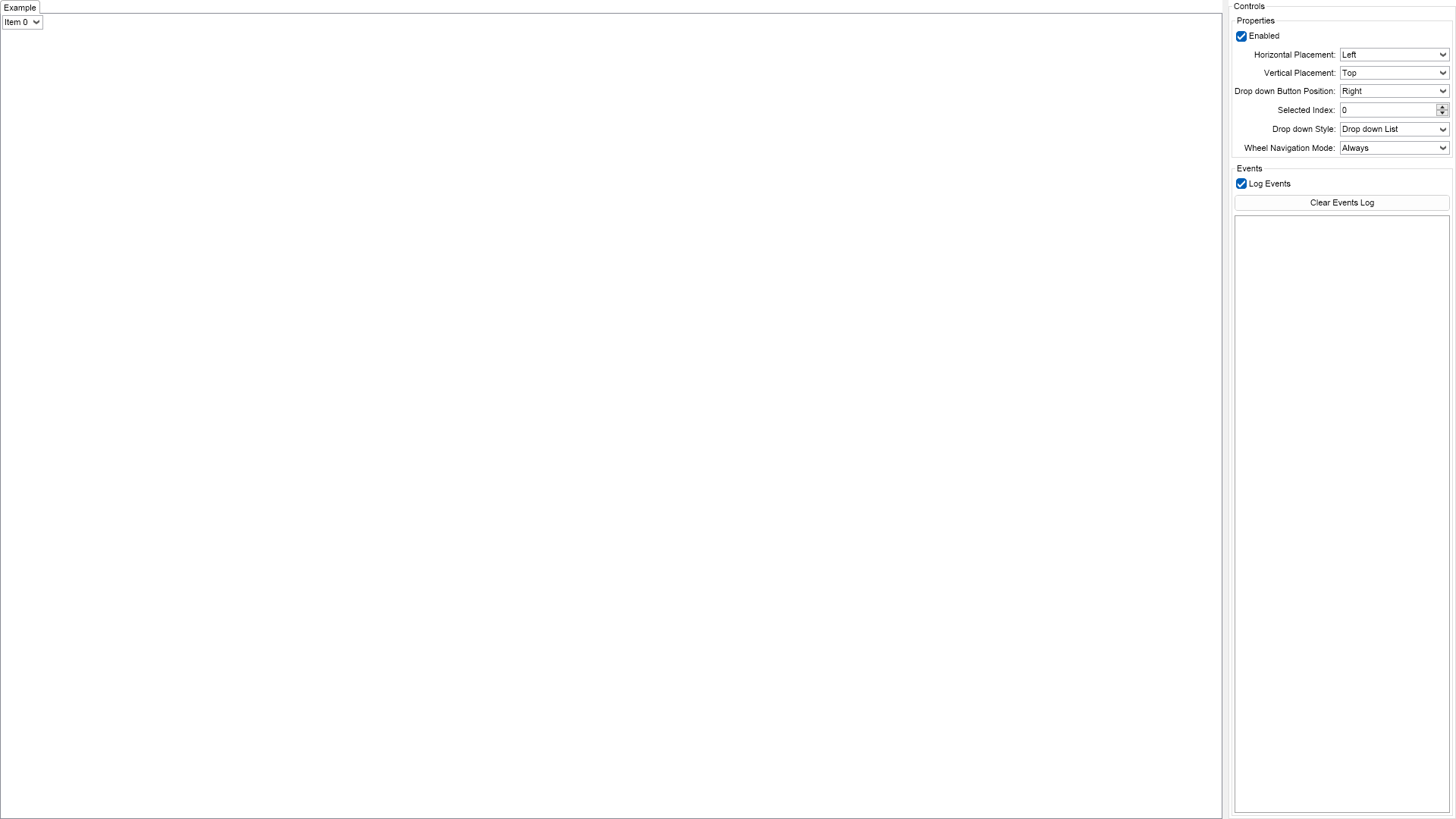
This example demonstrates how to create a simple combo box with text only items. You can use the controls on the right to modify various properties of the combo box.

| Language: C# |
using Nevron.Nov;
using Nevron.Nov.DataStructures;
using Nevron.Nov.Dom;
using Nevron.Nov.Editors;
using Nevron.Nov.Graphics;
using Nevron.Nov.Layout;
using Nevron.Nov.UI;
using Nevron.Nov.Windows.Forms;
using System.Windows.Forms;
namespace NovWinFormsProject
{
public partial class Form1 : Form
{
#region Constructors
public Form1()
{
InitializeComponent();
// Set form title
Text = "NOV WinForms - NComboBoxFirstLookExample";
// Create the NOV example and its controls
NWidget exampleContent = CreateExampleContent();
NWidget exampleControls = CreateExampleControls();
if (exampleControls != null)
{
exampleControls.PreferredWidth = 300;
}
// Place the example and its controls in a pair box
NPairBox pairBox = new NPairBox(exampleContent, exampleControls);
pairBox.FillMode = ENStackFillMode.First;
pairBox.FitMode = ENStackFitMode.First;
pairBox.Margins = new NMargins(NDesign.HorizontalSpacing, NDesign.VerticalSpacing);
// Host the example in the form
NNovWidgetHost host = new NNovWidgetHost(pairBox);
host.Dock = DockStyle.Fill;
Controls.Add(host);
}
#endregion
#region Example
public NWidget CreateExampleContent()
{
// create the combo box
m_ComboBox = new NComboBox();
m_ComboBox.HorizontalPlacement = ENHorizontalPlacement.Left;
m_ComboBox.VerticalPlacement = ENVerticalPlacement.Top;
m_ComboBox.DropDownStyle = ENComboBoxStyle.DropDownList;
// add a few items
for (int i = 0; i < 10; i++)
{
m_ComboBox.Items.Add(new NComboBoxItem("Item " + i.ToString()));
}
// select the first item
m_ComboBox.SelectedIndex = 0;
// hook combo box selection events
m_ComboBox.SelectedIndexChanged += OnComboBoxSelectedIndexChanged;
return m_ComboBox;
}
public NWidget CreateExampleControls()
{
NStackPanel stack = new NStackPanel();
stack.FillMode = ENStackFillMode.Last;
stack.FitMode = ENStackFitMode.Last;
NStackPanel propertiesStack = new NStackPanel();
NList editors = NDesigner.GetDesigner(m_ComboBox).CreateMemberEditors(
m_ComboBox,
NComboBox.EnabledProperty,
NComboBox.HorizontalPlacementProperty,
NComboBox.VerticalPlacementProperty,
NComboBox.DropDownButtonPositionProperty,
NComboBox.SelectedIndexProperty,
NComboBox.DropDownStyleProperty,
NComboBox.WheelNavigationModeProperty);
for (int i = 0; i < editors.Count; i++)
{
propertiesStack.Add(editors[i]);
}
stack.Add(new NGroupBox("Properties", new NUniSizeBoxGroup(propertiesStack)));
// create the events list box
m_EventsLog = new NExampleEventsLog();
stack.Add(m_EventsLog);
return stack;
}
public string GetExampleDescription()
{
return @"
This example demonstrates how to create a simple combo box with text only items. You can use the controls
on the right to modify various properties of the combo box.
";
}
///
/// Gets the relevant documentation links for the example
///
///
public (string Name, string Url)[] GetDocumentationUrls()
{
return new[]
{
("Combo Box", "https://www.nevron.com/docs/openvision/ui-combo-box.html"),
("Drop Down Edits Overview", "https://www.nevron.com/docs/openvision/ui-drop-down-edits-overview.html"),
};
}
#endregion
#region Implementation
#endregion
#region Event Handlers
private void OnComboBoxSelectedIndexChanged(NValueChangeEventArgs args)
{
NComboBox comboBox = (NComboBox)args.TargetNode;
m_EventsLog.LogEvent("Selected Index: " + comboBox.SelectedIndex.ToString());
}
#endregion
#region Fields
private NExampleEventsLog m_EventsLog;
private NComboBox m_ComboBox;
#endregion
#region Static Methods
#endregion
#region Constants
#endregion
#region Nested Types
#endregion
}
}