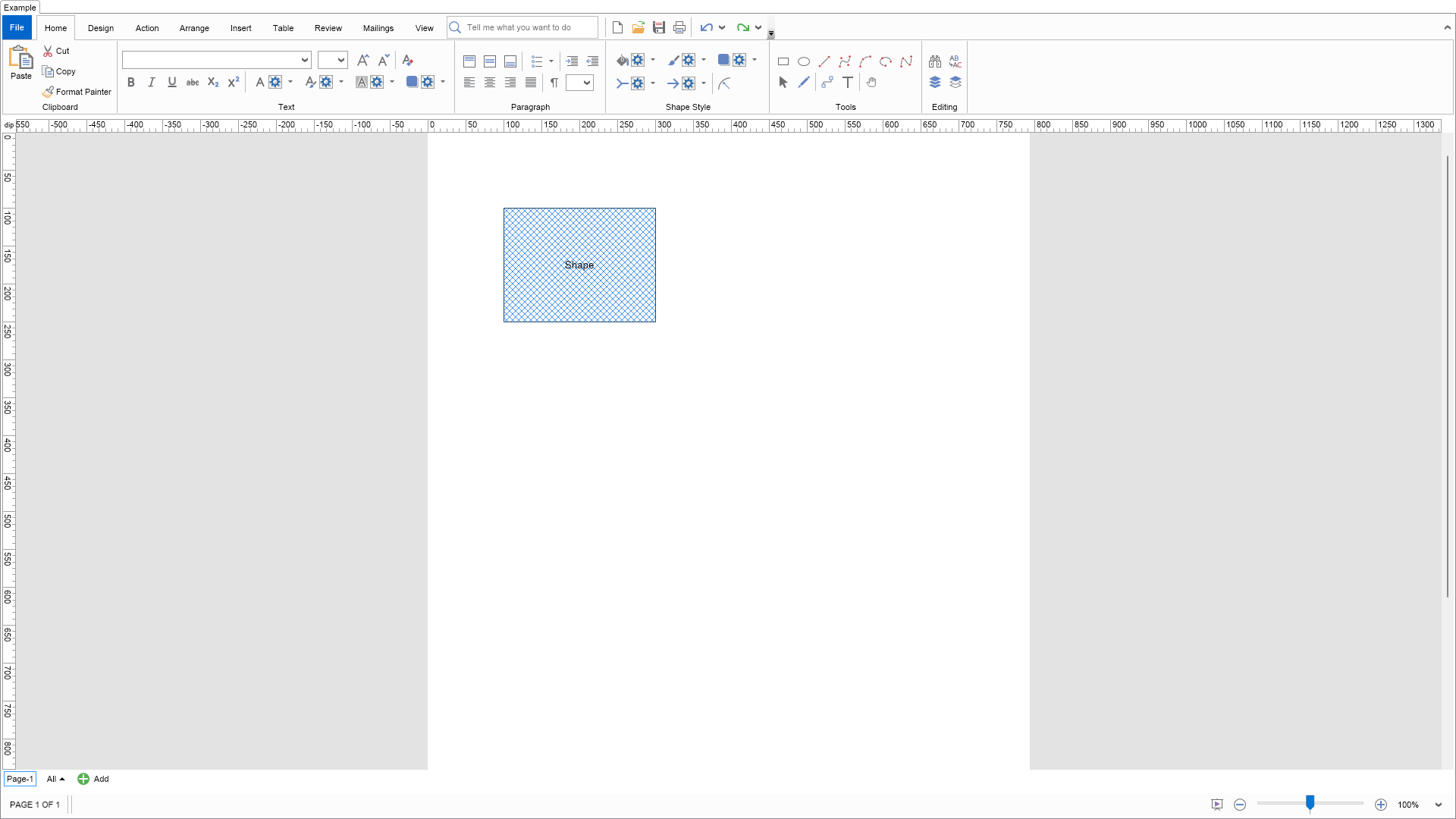
This example demonstrates how to create colors whose actual values are determined by the currently selected page theme and page theme variant. To do that, set the Tag property of the specific NColor to a theme based color info.
Select a new page theme or page theme variant from the Design tab of the ribbon to see how the style of the shape will change.

| Language: C# |
using Nevron.Nov;
using Nevron.Nov.Diagram;
using Nevron.Nov.Diagram.Themes;
using Nevron.Nov.Dom;
using Nevron.Nov.Graphics;
using Nevron.Nov.Layout;
using Nevron.Nov.UI;
using Nevron.Nov.Windows.Forms;
using System.Windows.Forms;
namespace NovWinFormsProject
{
public partial class Form1 : Form
{
#region Constructors
public Form1()
{
InitializeComponent();
// Set form title
Text = "NOV WinForms - NThemeBasedColorsExample";
// Create the NOV example and its controls
NWidget exampleContent = CreateExampleContent();
NWidget exampleControls = CreateExampleControls();
if (exampleControls != null)
{
exampleControls.PreferredWidth = 300;
}
// Place the example and its controls in a pair box
NPairBox pairBox = new NPairBox(exampleContent, exampleControls);
pairBox.FillMode = ENStackFillMode.First;
pairBox.FitMode = ENStackFitMode.First;
pairBox.Margins = new NMargins(NDesign.HorizontalSpacing, NDesign.VerticalSpacing);
// Host the example in the form
NNovWidgetHost host = new NNovWidgetHost(pairBox);
host.Dock = DockStyle.Fill;
Controls.Add(host);
}
#endregion
#region Example
public NWidget CreateExampleContent()
{
// Create a simple drawing
NDrawingViewWithRibbon drawingViewWithRibbon = new NDrawingViewWithRibbon();
m_DrawingView = drawingViewWithRibbon.View;
m_DrawingView.Document.HistoryService.Pause();
try
{
InitDiagram(m_DrawingView.Document);
}
finally
{
m_DrawingView.Document.HistoryService.Resume();
}
return drawingViewWithRibbon;
}
public NWidget CreateExampleControls()
{
return null;
}
public string GetExampleDescription()
{
return @"
This example demonstrates how to create colors whose actual values are determined by
the currently selected page theme and page theme variant. To do that, set
the Tag property of the specific NColor to a theme based color info.
Select a new page theme or page theme variant from the Design tab of
the ribbon to see how the style of the shape will change.
";
}
///
/// Gets the relevant documentation links for the example
///
///
public (string Name, string Url)[] GetDocumentationUrls()
{
return new[]
{
("Theme Based Shapes", "https://www.nevron.com/docs/openvision/diagram-theme-based-shapes.html"),
("Shape Styles", "https://www.nevron.com/docs/openvision/diagram-shape-styles.html"),
};
}
#endregion
#region Implementation
private void InitDiagram(NDrawingDocument drawingDocument)
{
// Create a rectangle shape
NShape shape = new NShape();
shape.Text = "Shape";
shape.Geometry.AddRelative(new NDrawRectangle(0, 0, 1, 1));
shape.SetBounds(100, 100, 200, 150);
// Make color1 a theme variant color
NDrawingTheme theme = NDrawingTheme.MyDrawNature;
NColor color1 = theme.ColorPalette.Variants[0][0];
color1.Tag = new NThemeVariantColorInfo(0);
// Make color2 a theme palette color
NColor color2 = theme.ColorPalette.Light1;
color2.Tag = new NThemePaletteColorInfo(ENThemeColorName.Light1, 0);
// Set the fill of the geometry to a hatch that depends on the theme
shape.Geometry.Fill = new NHatchFill(ENHatchStyle.DiagonalCross, color1, color2);
// Add the theme based shape to the active page of the drawing
NPage activePage = drawingDocument.Content.ActivePage;
activePage.Items.Add(shape);
}
#endregion
#region Event Handlers
#endregion
#region Fields
private NDrawingView m_DrawingView;
#endregion
#region Static Methods
#endregion
#region Constants
#endregion
#region Nested Types
#endregion
}
}