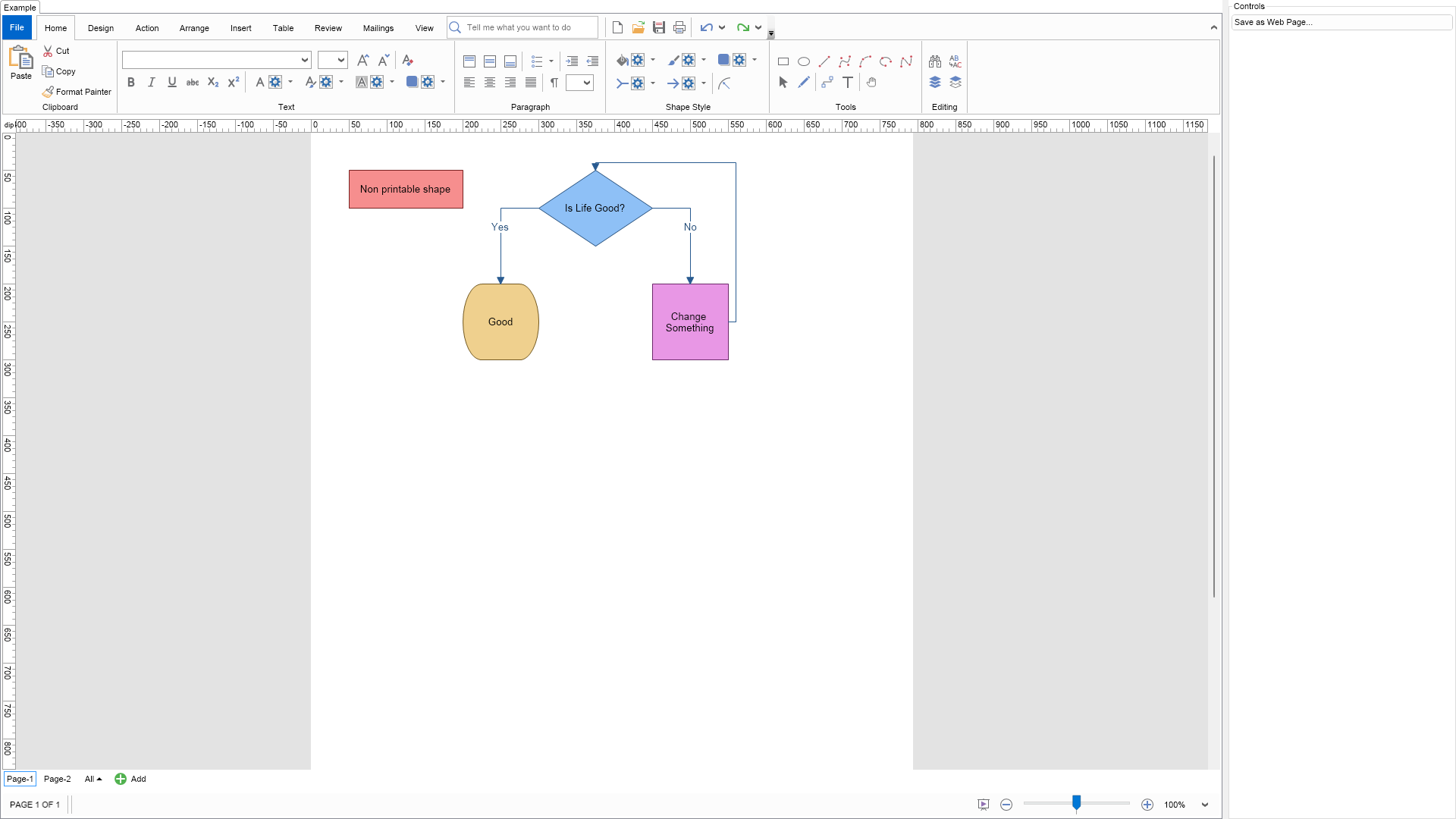
Demonstrates how to export a NOV Diagram drawing to a web page (HTML). The drawing is exported to SVG that gets inserted into an HTML web page. If the drawing has multiple pages, then some CSS and JavaScript are inserted in the HTML web page in order to create a tab navigation interface. Each drawing page is inserted into a tab page.

| Language: C# |
using Nevron.Nov;
using Nevron.Nov.DataStructures;
using Nevron.Nov.Diagram;
using Nevron.Nov.Dom;
using Nevron.Nov.Examples.Diagram;
using Nevron.Nov.Graphics;
using Nevron.Nov.Layout;
using Nevron.Nov.UI;
using Nevron.Nov.Windows.Forms;
using System;
using System.Windows.Forms;
namespace NovWinFormsProject
{
public partial class Form1 : Form
{
#region Constructors
public Form1()
{
InitializeComponent();
// Set form title
Text = "NOV WinForms - NHtmlExportExample";
// Create the NOV example and its controls
NWidget exampleContent = CreateExampleContent();
NWidget exampleControls = CreateExampleControls();
if (exampleControls != null)
{
exampleControls.PreferredWidth = 300;
}
// Place the example and its controls in a pair box
NPairBox pairBox = new NPairBox(exampleContent, exampleControls);
pairBox.FillMode = ENStackFillMode.First;
pairBox.FitMode = ENStackFitMode.First;
pairBox.Margins = new NMargins(NDesign.HorizontalSpacing, NDesign.VerticalSpacing);
// Host the example in the form
NNovWidgetHost host = new NNovWidgetHost(pairBox);
host.Dock = DockStyle.Fill;
Controls.Add(host);
}
#endregion
#region Example
public NWidget CreateExampleContent()
{
// Create a simple drawing
NDrawingViewWithRibbon drawingViewWithRibbon = new NDrawingViewWithRibbon();
m_DrawingView = drawingViewWithRibbon.View;
m_DrawingView.Document.HistoryService.Pause();
try
{
InitDiagram(m_DrawingView.Document);
}
finally
{
m_DrawingView.Document.HistoryService.Resume();
}
return drawingViewWithRibbon;
}
public NWidget CreateExampleControls()
{
NStackPanel stackPanel = new NStackPanel();
NButton saveAsButton = new NButton("Save as Web Page...");
saveAsButton.Click += OnSaveAsButtonClick;
stackPanel.Add(saveAsButton);
return stackPanel;
}
public string GetExampleDescription()
{
return @"
Demonstrates how to export a NOV Diagram drawing to a web page (HTML). The drawing is exported
to SVG that gets inserted into an HTML web page. If the drawing has multiple pages, then some
CSS and JavaScript are inserted in the HTML web page in order to create a tab navigation interface.
Each drawing page is inserted into a tab page.
";
}
///
/// Gets the relevant documentation links for the example
///
///
public (string Name, string Url)[] GetDocumentationUrls()
{
return new[]
{
("Drawing Vector Image Export", "https://www.nevron.com/docs/openvision/diagram-drawing-vector-image-export.html"),
("Drawing Raster Image Export", "https://www.nevron.com/docs/openvision/diagram-drawing-raster-image-export.html"),
};
}
protected void AccumulateAdditionalSourceCodeFiles(NList types)
{
types.Add("DiagramHelpers.cs");
}
private void InitDiagram(NDrawingDocument drawingDocument)
{
NDrawing drawing = drawingDocument.Content;
NPage activePage = drawing.ActivePage;
drawing.ScreenVisibility.ShowGrid = false;
drawing.ScreenVisibility.ShowPorts = false;
DiagramHelpers.CreateSimpleFlowchart(activePage);
NPage page = new NPage("Page-2");
drawing.Pages.Add(page);
DiagramHelpers.CreateSimpleFlowchart(page);
}
#endregion
#region Implementation
#endregion
#region Event Handlers
private void OnSaveAsButtonClick(NEventArgs arg)
{
string fileName = m_DrawingView.Content.Information.FileName;
if (String.IsNullOrEmpty(fileName) || !fileName.EndsWith("vsdx", StringComparison.OrdinalIgnoreCase))
{
// The document has not been saved, yet, so set a file name with HTML extension
// to make the default Save As dialog show Web Page as file save as type
m_DrawingView.Content.Information.FileUri = "file:///Document1.html";
}
m_DrawingView.SaveAsAsync();
}
#endregion
#region Fields
private NDrawingView m_DrawingView;
#endregion
#region Static Methods
#endregion
#region Constants
#endregion
#region Nested Types
#endregion
}
}